Step 4: Attack planning
In step 4 you plan all targets that are hit for real — that is, targets that receive real nukes. Accompanying fakes for these targets are defined here as well. The planning of pure fake targets runs separately in Step 5: Fake planning.
The step itself carries the global settings that apply to all categories together. Below it, the three target categories expand as sub-steps in the step bar:
- 4.1 Snob-Spam
- 4.2 Catapult-Spam
- 4.3 Breaking Bunkers
The category names are only a suggestion
Snob-Spam and Catapult-Spam are identical in their settings, Breaking Bunkers offers a deliberately reduced set. So you do not have to take the names literally — the first two categories work just as well for two different catapult operations, for instance.
1. Global settings
1.1 Global limits
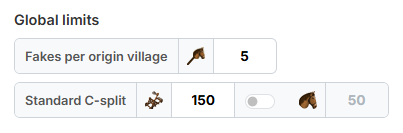
- "Fakes per origin village" — how many fakes in total may be planned from
a single village. Default
5. - "Standard C-split" — the number of catapults in a single C-split.
Default
150. - In the same field sits a switch on the right, "Send light cav with C-split (min. 50)". When it is on, every split additionally receives the number of light cavalry entered next to it as an escort.
Minimum amount for the light cavalry escort
A split receives either at least 50 light cavalry or none at all — never just an ineffective handful. If an origin village has fewer than 50 left, the split runs without an escort; it is not cancelled. If the stock lies between 50 and the desired amount, as many are planned as the village can spare.
Fake limit & buffer
How many troops a fake must contain at minimum does not follow from these limits but from the fake limit of the world (e.g. 1 % or 2 % of the village points). The tool sizes the fake troops accordingly and additionally plans a buffer of 500 village points: this way the fake still contains enough troops even if the origin village grows by up to 500 points between planning and sending. Origin villages that cannot cover this buffer from their available troops are skipped for fakes.
1.2 Planning sequence
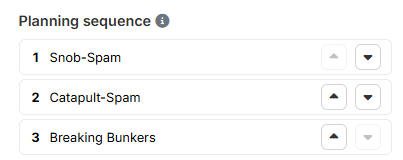
Use the arrows "To the top" / "To the bottom" to bring the three categories into the desired order.
When troops are tight, the order decides
The topmost category is planned first. If nuke resources are tight, the bottom category will most likely not get everything it needs. So put the most important category at the top.
1.3 Catapult-Cleaners
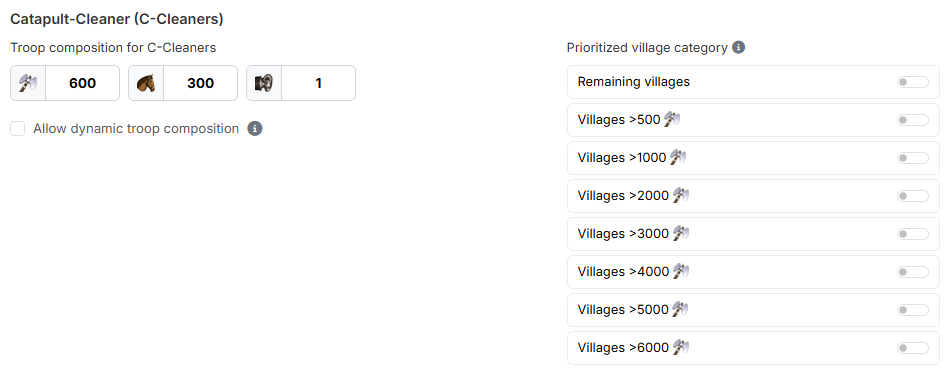
Catapult-cleaners run between two C-splits and clear the defence. Here you define once what they look like and where they come from; how many fly per target is decided in the respective category.
Under "Troop composition for C-Cleaners" you enter the target troops:
axe (default 600), light cavalry (300) and rams (1).
Dynamic troop composition
If "Allow dynamic troop composition" is active, catapult-cleaners are also planned that do not exactly match the entered troop composition (for example when the village is short on axemen). The tool then fills up with axe or light cavalry on its own until the resulting attack strength is reached.
To the right, "Prioritized village category" determines which village categories catapult-cleaners may be planned from. Switch on the categories you want — active rows move to the top.
No category, no catapult-cleaner
If at least one catapult-cleaner is planned, at least one village category must be switched on here. Otherwise the check before the calculation aborts.
2. Step 4.1: Snob-Spam
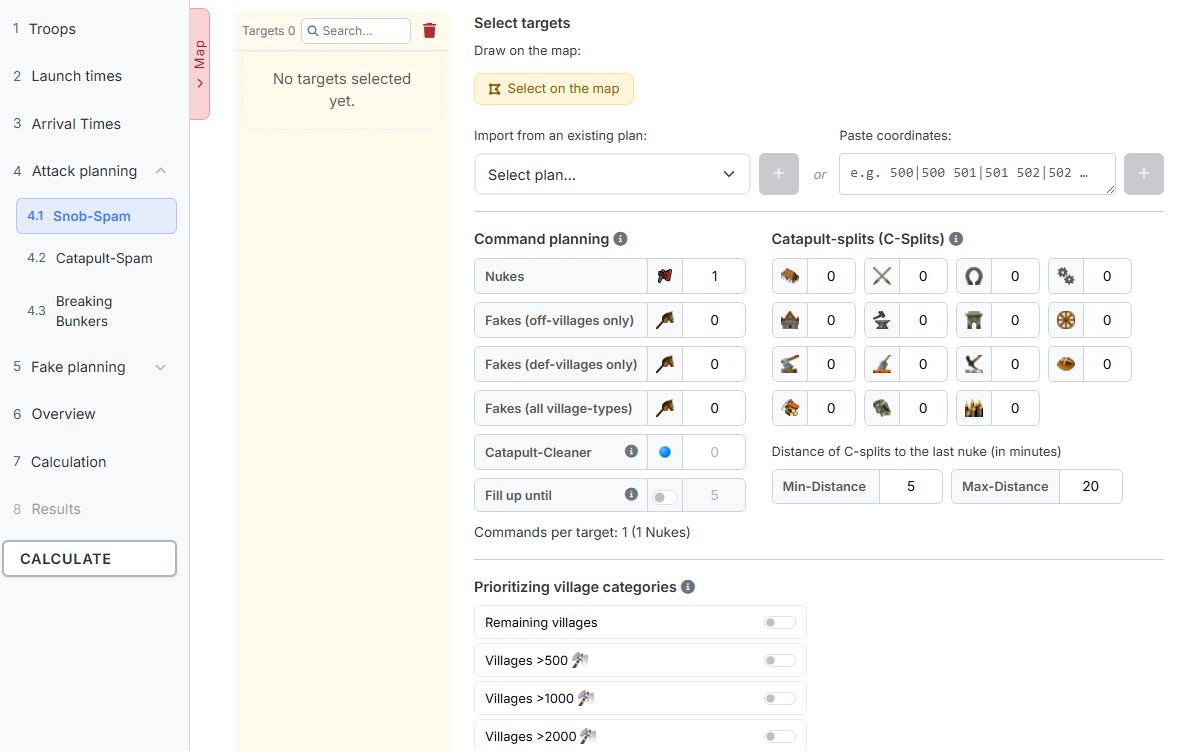
On the left sits the target list of the category with the number of targets, a search field and a bin ("Delete all"). The targets are grouped by player, so you see at once how many villages of an opponent you are hitting. To the right of it are all settings of this category.
2.1 Selecting targets
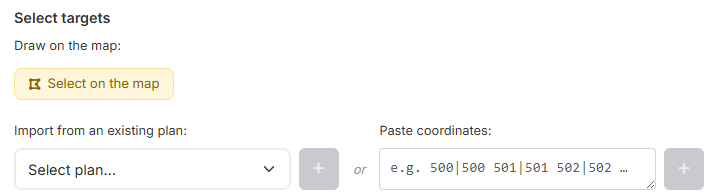
There are three ways to get targets into the category:
- "Draw on the map:" — the button "Select on the map" opens the overall map in selection mode. There you click villages individually or drag a lasso around an area, see The Overall Map.
- "Import from an existing plan:" — takes over the targets of a saved plan. After selecting it in the dropdown, the contained command types appear as checkboxes, each with a counter such as "48 target villages · 31 of them plannable".
- "Paste coordinates:" — for individual targets. Surrounding text does not matter.
What plannable means
Plannable are those targets of the plan that exist on this world, are not barbarian villages and have not been entered as a target yet.
No target is planned twice
The tool makes sure a village is never in two categories at the same time. Coordinates that already lie in another attack category are filtered out when adding. A village that was entered as a pure fake target so far, on the other hand, moves here — the real planning takes precedence, and the tool tells you so with a message.
Barbarian villages are not allowed as targets.
2.2 Command planning
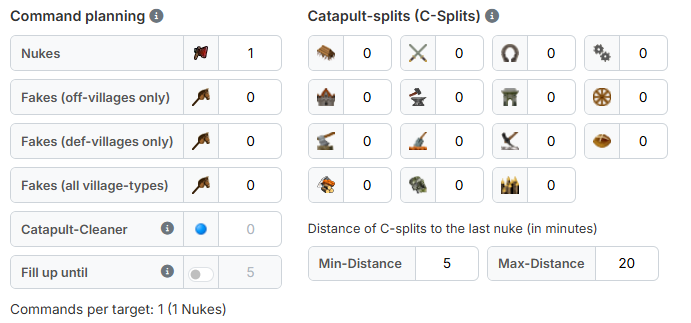
Here you define how many commands every target of this category receives:
- "Nukes" — real nuke attacks per target.
- "Fakes (off-villages only)" — accompanying fakes that start from off-villages only.
- "Fakes (def-villages only)" — accompanying fakes that start from def-villages only.
- "Fakes (all village-types)" — accompanying fakes from any village.
- "Catapult-Cleaner" — number of catapult-cleaners per target. Their troops come from section 1.3.
- "Fill up until" — switch plus number.
Below the fields a line adds everything up, for example "Commands per target: 9 (2 Nukes · 5 C-Splits · 1 C-Cleaner · 1 Fakes)".
Catapult-cleaners need at least two C-splits
Catapult-cleaners run between two C-splits — that is why they can only be entered once at least two C-splits are planned. How many are possible depends on the number of C-splits: there is always room for one less than the number of C-splits entered. If you enter more, the tool automatically lowers the value to the highest permissible number.
What Fill up until does
If a command could not be planned — a nuke, a C-split or a catapult-cleaner, say — the tool fills up with fakes until the number of commands entered here is reached. That way every target always receives the same number of commands, and the opponent cannot read from the number of incomings where things get serious.
2.3 C-splits (buildings)
To the right of the command planning there is one field per building. The
number states how many individual splits should be planned onto every
target of this category — if you enter a 3 at the headquarters, the tool
tries to place three splits on the headquarters. Every split receives the
number of catapults stored under
Standard C-split.
Below that, "Distance of C-splits to the last nuke (in minutes)" defines
how far behind the last nuke the splits should arrive — via
"Min-Distance" (default 5) and "Max-Distance" (default 20).
2.4 Prioritizing village categories
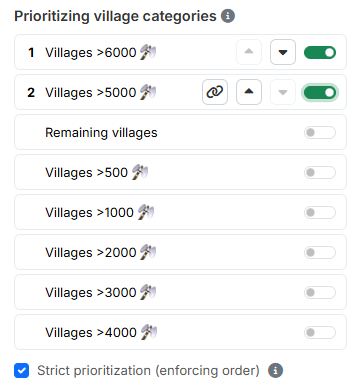
Here you determine which villages the nukes for this category may come
from. Switch on the village categories you want (Villages >500 axe,
>1000 axe … as well as Remaining villages).
The checkbox "Strict prioritization (enforcing order)" below decides how the tool reads the selection:
- Off — all switched-on categories form one common pool. The order then plays no role.
- On — the categories are worked through strictly one after another: a lower prioritized category is only touched once no valid option is left in the higher one.
Only once strict prioritization is switched on do the rank number, the arrows "To the top" / "To the bottom" and a chain symbol appear on the active rows. With the chain you put two categories on the same rank ("Same rank as the row above"); a second click separates them again.
2.5 Distances between the nukes
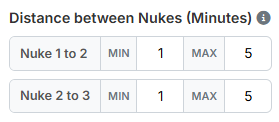
As soon as at least two nukes per target are planned, a separate field
appears for every consecutive pair of nukes: Nuke 1 to 2, Nuke 2 to 3 and
so on, each with "MIN" and "MAX" in minutes (default 1 and 5). If
the number of nukes is 1, the whole section stays hidden.
How the tool reads the distances
Per pair of nukes you define how far behind the previous one the next nuke may arrive: at the earliest after the min distance, at the latest after the max distance. Within that window the tool then looks for a matching origin village.
Example — allowing for delays when sending: you plan a catapult operation with 2 nukes and 5 C-splits per target, and the distance of the C-splits to the last nuke is set to 3 minutes. If the distance between the 1st and 2nd nuke is very small, the nukes can arrive behind the C-splits when sent late. If you set Nuke 1 to 2 to 10 minutes instead, the 1st nuke still safely arrives before the C-splits even if both nukes are 5 minutes late.
2.6 More detailed settings
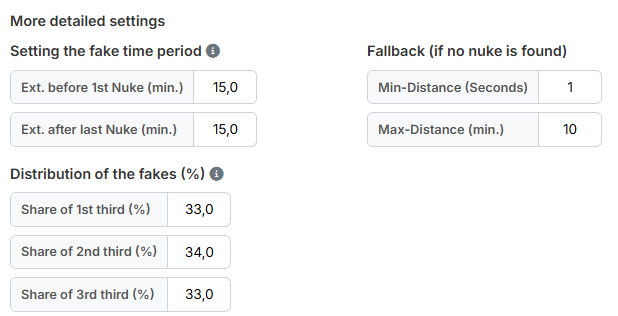
This section is collapsed and contains the fine control of the accompanying fakes. If the shares do not add up, a warning sign appears on the heading — even while it is collapsed.
"Setting the fake time period" — "Ext. before 1st Nuke (min.)" and
"Ext. after last Nuke (min.)", both 15.0 by default.
How the fake time period comes about
The fake time period is derived per target from its real commands: it begins at the earliest arrival (nuke, C-split or catapult-cleaner) minus the extension before and ends at the latest arrival plus the extension after. If a target has no real commands and filling up with fakes is on, the arrival time frame from step 3 applies instead.
"Distribution of the fakes (%)" — "Share of 1st third (%)", "Share of 2nd third (%)" and "Share of 3rd third (%)", by default 33/34/33. The fake time period is divided into three equally long sections; the three values define which share of the fakes arrives in which section. This is how you control whether the accompanying fakes arrive rather before the real nukes, mix with them or only follow after them. A line below keeps count and reports when the sum does not add up to 100 %.
"Fallback (if no nuke is found)" — "Min-Distance (Seconds)" (default
1) and "Max-Distance (min.)" (default 10). If the tool finds no
suitable origin village within the regular distance window, it tries once more
to fit the nuke into this much wider window behind the previous nuke.
3. Step 4.2: Catapult-Spam
The category Catapult-Spam is built structurally identically to
4.1 Snob-Spam — same target list, same target
selection, same command planning, same C-splits, same prioritization, same
detailed settings. Two things are different: the colour of the drawing button
on the map (red instead of yellow) — and the field "Nukes" may be set to
0 here. That allows a pure catapult operation in which a target only
receives C-splits and no nuke. With Snob-Spam at least 1 nuke is mandatory.
All remaining explanations from section 2 apply unchanged.
4. Step 4.3: Breaking Bunkers
With Breaking Bunkers, every target carries its own number of nukes. That is why the category looks different in several places.
Selecting targets — there are only two ways: "Draw on the map:" via the
map and "Paste coordinates:". There is no import from a saved plan here.
Instead, the field "Nukes" (default 10) sits next to it.
The number of nukes can be changed per target
The value in the field applies to all targets you add with the plus button next to it. In the target list on the left the number can afterwards be changed for every target individually. The same goes for the selection on the map: there the number sits in the selection bar and is only read when you apply the selection.
A target with 0 nukes is not corrected silently — the check before
the calculation reports it.
What is missing here — there is no command planning with fake fields, no C-splits and no catapult-cleaners. Bunkers receive nukes, and if not all of them can be planned, the rest is filled up with fakes.
"Distance between Nukes (Minutes)" — unlike with Snob-Spam and
Catapult-Spam there is only one single pair of fields here, consisting of
"Min-Distance" (default 1) and "Max-Distance" (default 5). It
applies to all distances of a target, because here every target carries its own
number of nukes.
"Fill up with fakes" — with "Fill up until" (switch plus number,
default 15) you define up to how many commands per target the tool fills up
with fakes.
Prioritizing village categories and More detailed settings are identical to 4.1 and 4.1 respectively.
Next up: Step 5: Fake planning.