Tribe Surveys
The "Planning" tab is split into two sub-tabs:
- Container — collect, coordinate and distribute attack plans to the players (see Planning (Container)).
- Tribe Surveys — collect preparatory data from the members (snob entries, launch times, excluded villages). This sub-tab is preselected when the tab is opened.
This page describes the "Tribe Surveys" sub-tab.
TWU-Planner and TWU-Leader only
The "Planning" tab is visible exclusively to users with the TWU-Planner or TWU-Leader role. Creating, editing, closing and deleting surveys is likewise limited to those two roles.
What is a tribe survey?
A tribe survey is a reporting round: you define what you want to know and by when, hand the link to the tribe and then see in a table who delivered and who did not.
Three data types can be requested — individually or in any combination:
- Snob-Entries — which player has how many snobs ready in which village?
- Launch times — when does a player actually have time to send commands?
- Excluded Villages — which source villages must not be planned with?
These three lists are the most important groundwork for nuke and snob planning. Any number of surveys may run at the same time — for example one per operation or per cluster.
Overview
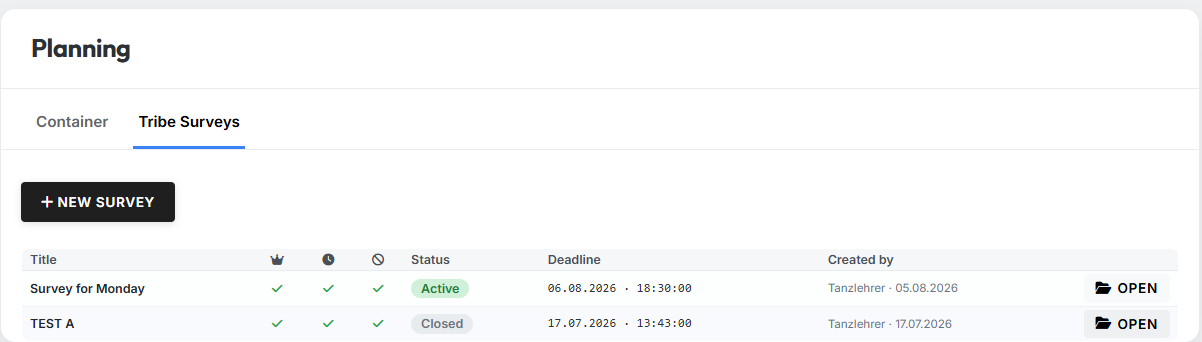
The overview lists all surveys of the server:
| Column | Meaning |
|---|---|
| Title | Name of the survey |
| 👑 | Survey requests Snob-Entries |
| 🕐 | Survey requests Launch times |
| 🚫 | Survey requests Excluded Villages |
| Status | Active or Closed |
| Deadline | Date and time of the reporting deadline (world time) |
| Created by | Leader and date of creation |
| "Open" button leading to the detail view |
The three icon columns show a green check mark if the data type is requested, and a grey ✗ otherwise.
Creating a new survey
The "New Survey" button opens the creation dialog:
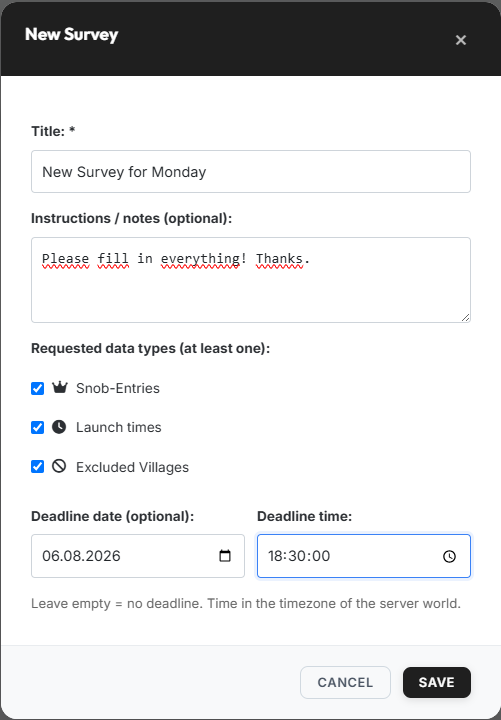
Dialog fields:
- Title (mandatory, max. 120 characters) — e.g.
Snob round cluster A. - Instructions / notes (optional) (max. 2000 characters) — free text that the members later see at the top of the reporting page.
- Requested data types — at least one of the three must be ticked.
- Deadline date (optional) and Deadline time — the reporting
deadline. If the date is left empty, the survey has no deadline. If
only a date without a time is set, the survey ends at
23:59:59. The deadline must lie in the future.
Times are in world time
The deadline is entered and displayed in the timezone of the server world — not in the timezone of your computer.
After saving, the tw-utils Discord bot sends a one-time announcement via direct message to all linked members of the server. Anyone who has switched off the Tribe Surveys notification in their profile receives no DM — see Notifications.
Detail view of a survey
Clicking "Open" switches to the detail view:
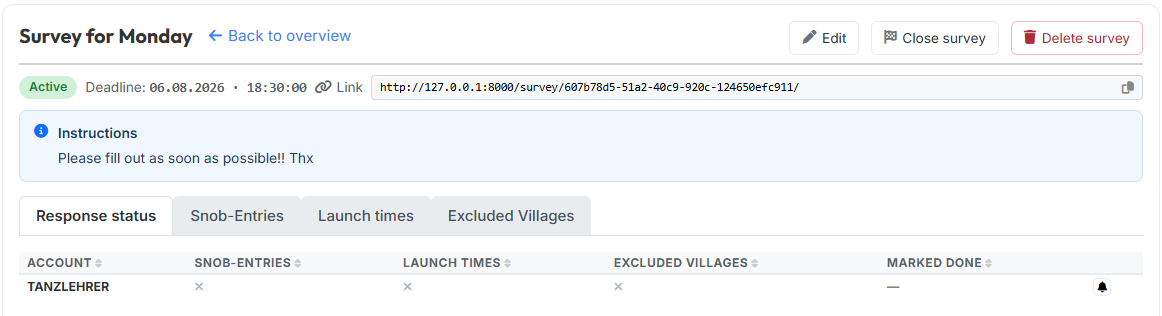
In the header you find the title and the "Back to overview" link on the left, and the survey actions on the right. Below that come status, deadline and — most importantly — the share link with a copy button. That link is exactly what you pass on to the tribe. If instructions are stored, they appear in the blue box below.
The three actions in the header:
- Edit — changes title and instructions. The requested data types and the deadline are fixed once the survey is created and can no longer be changed.
- Close survey — sets the status to Closed. Members can no longer report anything; the data already reported is fully retained and remains importable. A closed survey cannot be reopened.
- Delete survey — removes the survey together with all its reports. The confirmation dialog states beforehand how many snob entries, launch times and excluded villages will be lost. The action cannot be undone.
The deadline closes the survey automatically
Once the deadline passes, the survey counts as closed — even without clicking "Close survey". Reports are no longer possible from that moment on.
Below that sit the survey's tabs. "Response status" is always present; the three data tabs only appear for the data types this survey actually requests.
The "Response status" tab
The response status is the control view: one row per linked TW-Account of the server.

| Column | Meaning |
|---|---|
| Account | The TW-Account; the tooltip lists the linked Discord users |
| Snob-Entries | Check mark with the number of reports, otherwise ✗ |
| Launch times | Check mark with the number of entries, otherwise ✗ |
| Excluded Villages | Check mark with the number of entries, otherwise ✗ |
| Marked done | Who marked it done and when, otherwise — |
| Bell button for a reminder |
Only the columns of the data types actually requested are shown. All columns can be sorted by clicking the header.
Marked done is a deliberate confirmation by the player ("I'm finished") and is independent of how many rows they reported — especially when someone has nothing to report, it is the only reliable piece of information.
Sending a reminder
The bell button at the end of a row makes the Discord bot send a reminder DM to all Discord users linked to that account. After sending, the button turns grey and shows the timestamp in its tooltip.
One reminder per survey and account
Exactly one reminder is possible per survey and account — the button is not a machine gun. It only appears while the survey is active. If none of the linked Discord users accepts survey DMs, the reminder is not used up but rejected with a notice.
The "Snob-Entries" tab
In this area the snob entries of this survey are managed. The list is the basis for the later snob planning.
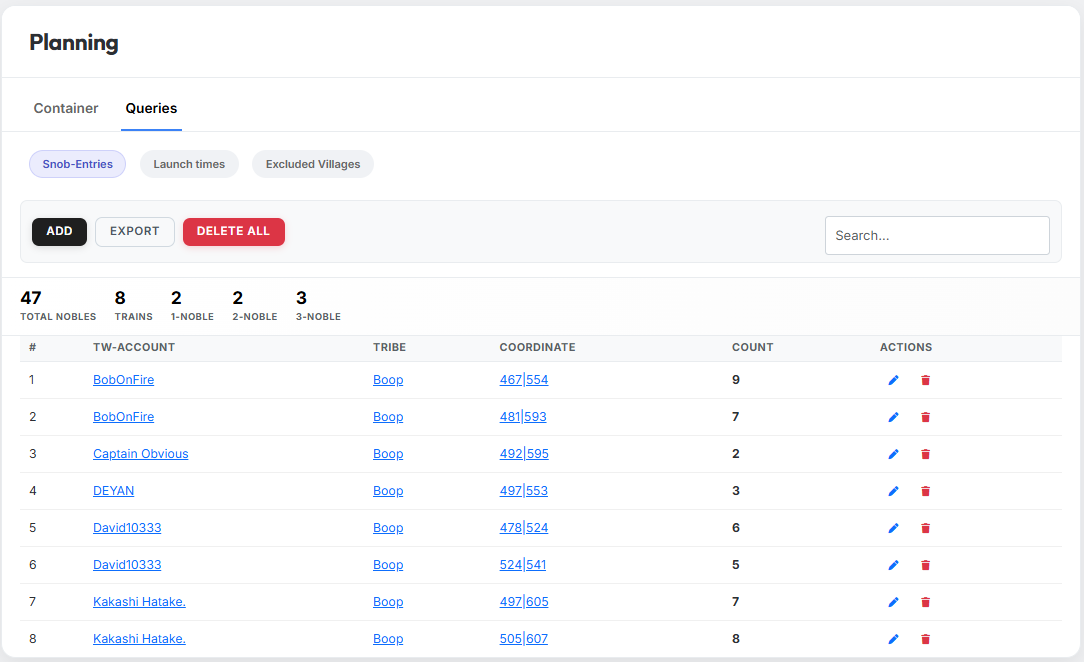
In the toolbar above the table you find the "Add", "Export" and "Delete All" buttons on the left and the search field on the right — and between them the metrics of all entries of this survey:
- Total Nobles — sum of all reported snobs across all players.
- Trains — number of full trains (4 snobs each). Counted per source village: how many complete sets of four it contains.
- 1-Noble / 2-Noble / 3-Noble — the remainder left over per village after the full trains have been counted.
Example
A village with 8 reported snobs counts as 2 trains and leaves no remainder. A village with 6 snobs counts as 1 train plus one 2-Noble.
The table below lists every single entry:
| Column | Meaning |
|---|---|
| # | Running number |
| TW-Account | Player providing the snobs |
| Tribe | Tribe of the player |
| Coordinate | Source village of the entry |
| Count | How many snobs the player has ready from this source village |
| Actions | Edit entry (pencil) or delete (trash) |
The "Launch times" tab
Here you manage the individual launch windows of the players — i.e. the time windows in which the individual players actually have time to send commands.
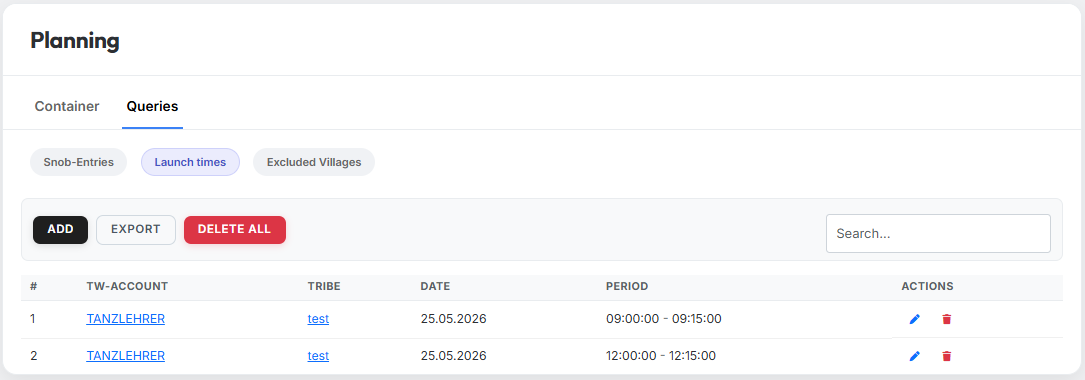
Table columns:
| Column | Meaning |
|---|---|
| # | Running number |
| TW-Account | Account the entered time window applies to |
| Tribe | Tribe of the player |
| Date | Day on which the player can launch |
| Time range | From and to time (Tribalwars server time) |
| Actions | Edit or delete entry |
Above the table sit the "Add", "Export" and "Delete All" buttons again, plus the search field.
The "Excluded Villages" tab
Here you mark villages that should not be used as a source village in nuke planning — for example because the player currently wants to hold the village defensively or because the troops are reserved for another operation.
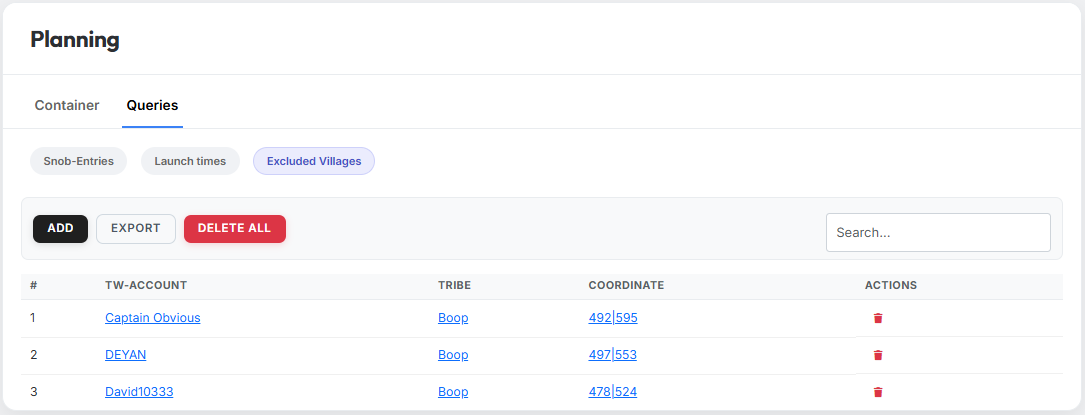
Table columns:
| Column | Meaning |
|---|---|
| # | Running number |
| TW-Account | Owner of the excluded village |
| Tribe | Tribe of the owner |
| Coordinate | The excluded village |
| Actions | Delete entry |
Here too, "Add", "Export" and "Delete All" as well as the search field sit above the table.
Adding entries manually
All three lists can be filled not only by the members but also directly in the Leader-View. Clicking the "Add" button above the respective table opens the matching input modal. After confirming, the new entry appears immediately in the corresponding table.
Everything belongs to this one survey
Adding, editing, exporting and "Delete all" act exclusively within the survey currently open. Other surveys remain untouched.
The three input modals in detail:
Add snob entry
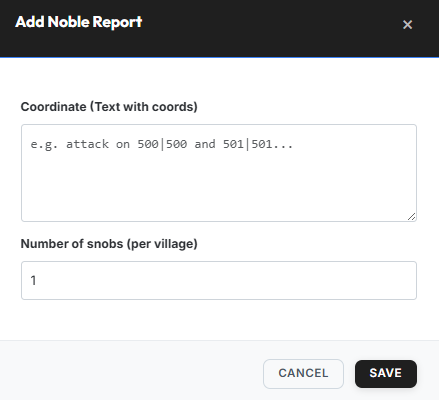
Fields:
- Coordinates (text with coords) — one or more source coordinates;
surrounding text is ignored (e.g.
Snobs ready in 500|500 and
  501|501…
). - Snob count (per village) — how many snobs the player has ready per source village. The entered value applies to all coordinates detected in step 1.
Add launch time
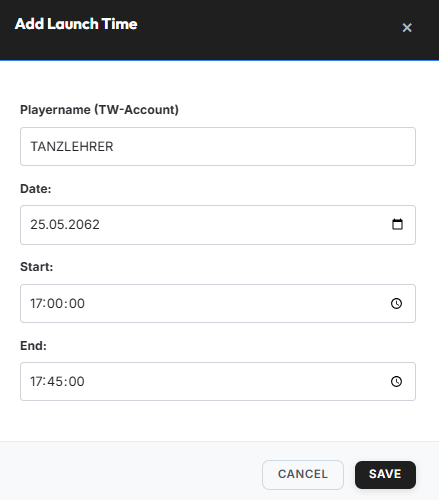
Fields:
- Player name (TW-Account) — with autocomplete via the verified accounts.
- Date — day of the launch window.
- From / To — start and end of the time window (Tribalwars server time).
Exclude source village
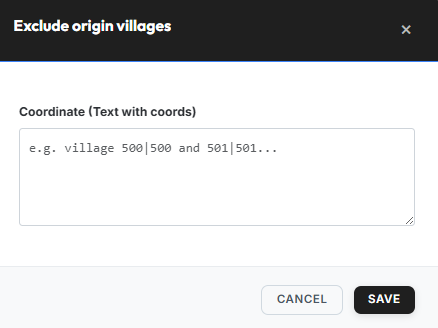
In the "Coordinates (text with coords)" field you enter one or more coordinates (surrounding text is ignored).
What the members see
Members report their data on a dedicated page reachable through the survey's share link. This section shows that page from a tribe member's point of view — handy when you have to answer questions as a leader.
How the members get there
Two ways lead to the reporting page:
- Via the link — you distribute it through Discord, an in-game message or the forum. The page requires a Discord login and a TW-Account linked on this server.
- Via "My Accounts" — on tw-utils.net, the account card of the matching world shows a "Tribe Surveys" section.
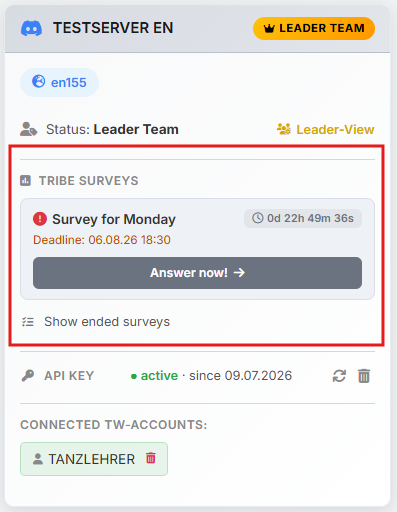
Every running survey is listed there with its title, deadline and a live countdown; the "Answer now!" button leads straight to the reporting page. Via "Show ended surveys" below it, a member can also review what they reported in earlier rounds.
The reporting page itself has one area per requested data type. To the left of each form sits the yellow "Reported" box with everything already entered for that account — the ✗ behind a row takes an entry back.
Own accounts only
A member can only ever report for their own linked accounts. The server assigns every coordinate to the right account automatically; coordinates of foreign villages, barbarian villages and non-existing coordinates are rejected individually, stating the reason.
Report Snobs
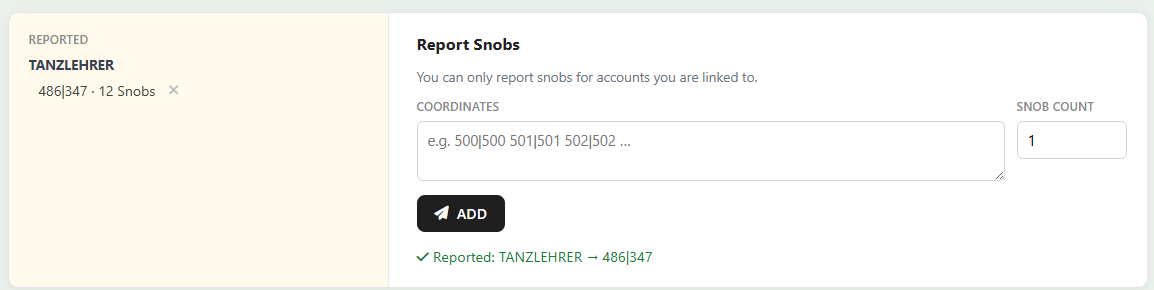
The "Coordinates" field takes one or more source villages, and "Snob count" the number of ready snobs — that value applies to all coordinates entered. "Add" saves the report.
Report Launch times
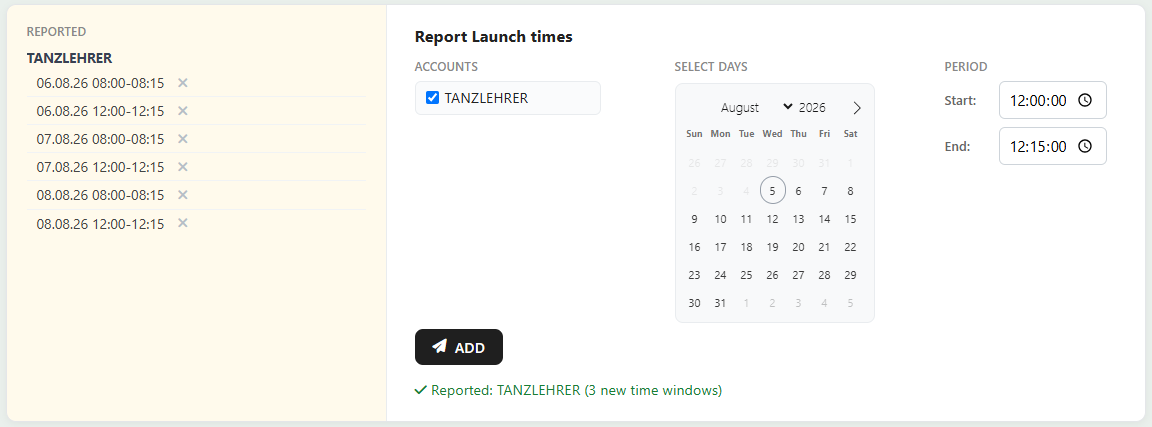
Here the player ticks under "Accounts" which of their accounts the time window applies to, picks any number of days in the "Select Days" calendar and sets the "Period" times "Start:" and "End:". A click on "Add" creates all combinations at once — days × accounts entries.
Exclude origin villages
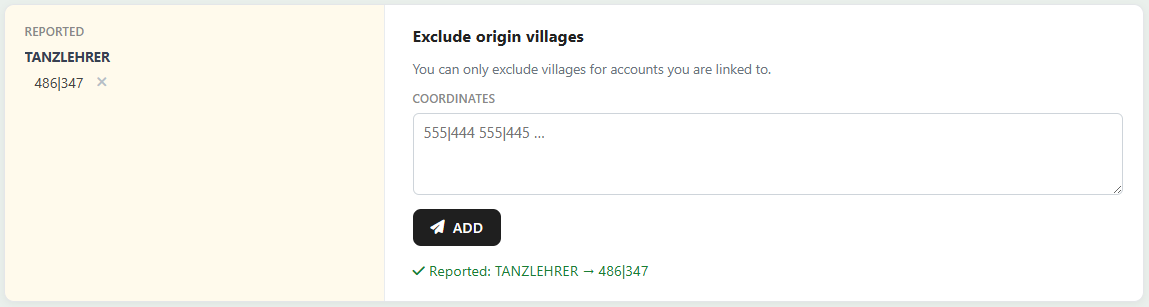
The "Coordinates" field takes the villages the player does not want to be planned from — several coordinates at once are possible here as well.
Report done

At the very bottom there is a "Done" button per linked account. After the click the row shows a green "Marked done on …"; the ✗ takes the confirmation back.
Exactly this click ends up on your side in the Response status tab, in the "Marked done" column.
Reports also come in via the Discord bot
Players can still submit snob entries, launch times and excluded source villages directly via the Planning-System of the Discord bot. The bot first asks which survey the report belongs to; if only one survey is active, that question is skipped.
Further use in the planning tools
The collected data is picked up in the planning tools via a dropdown — select the survey there and confirm with the plus button:
- Snob-Entries → snob-planning tool, column "From tribe survey" (see Step 1: Snob-Entries).
- Launch times → nuke-planning tool, step 2 (see Step 2: Launch times).
- Excluded Villages → nuke-planning tool, step 1 (see Step 1: Troops).
Closed surveys stay importable
Importing after the deadline is the normal case: first the members report, then the planning happens. Closed surveys therefore appear in the dropdowns just like running ones. For launch times, however, only time windows that still lie in the future are taken over.