Off/Deff/Snob-Search-System
With the ODS system, players can search for Off, Deff or Snob commands targeting a specific coordinate. The ODS system is similar to the Single Village Snipe script — but while that one only considers the troops of a single player, the ODS system pulls villages from the entire tribe into the selection. The bot matches incoming search requests against the stored troop data and returns a list of players who can launch a matching Off, Deff or Snob command.
Prerequisite: troop upload
The bot can only report hits for players whose troop data is currently uploaded. If no data is available, the hit list stays empty. For meaningful results, users with the TWU-Troops role should refresh the troop data regularly via /admin troops_upload.
1. Module channels
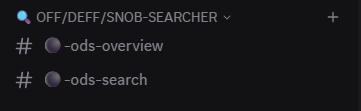
After the setup, the bot creates the category 🔍 OFF/DEFF/SNOB-SEARCHER with two base channels:
#⚫-ods-search— central search channel with the three search buttons and the admin panel#⚫-ods-overview— dashboard channel listing all ongoing and completed search requests
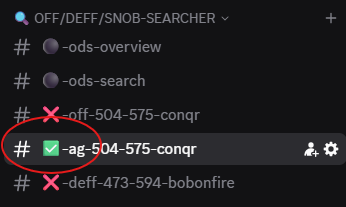
As soon as someone exports a search result into a separate channel (see Section 5), the bot additionally creates a dedicated channel per request in the same category, following the schema ❌-off-XXX-YYY-PLAYERNAME or ❌-deff-… / ❌-ag-…. Once the request is taken care of, the prefix switches to ✅ — see Section 6.
2. Troop data
For the bot to be able to answer any search requests at all, the tribe members' troop data must be stored in the bot. To do that, the search channel #⚫-ods-search provides the ODS Panel embed with three admin buttons: Upload Troops, Delete Troops, Show Troop Status.
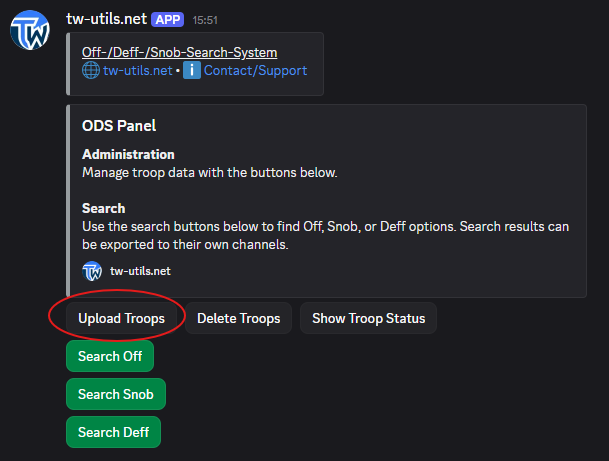
Upload Troops leads to the slash command /admin troops_upload, which is used to read in the TW troop CSV file.

The file is most conveniently generated via the quickbar script „Download Tribe Info". The content is comma-separated, but the file extension has to be .txt — a .csv file is rejected by the bot. Expected file format:
Coords,Player,spear,sword,axe,archer,spy,light,marcher,heavy,ram,catapult,knight,snob
483|520,Testuser A,2421,6099,100,5963,50,50,3632,200,5,279,0,8
543|538,Testuser A,100,100,6027,100,6,3014,100,100,159,5,0,0
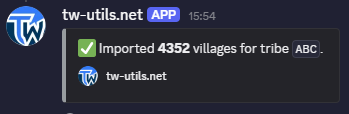
After a successful upload, the bot confirms with a short success message.
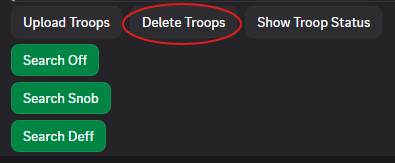
Uploaded troop data can be removed again via the Delete Troops button.
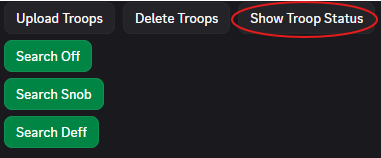
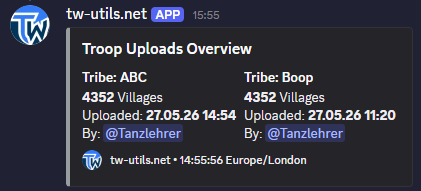
Show Troop Status opens the Troop Uploads Overview embed listing all uploaded troop files per tribe along with their respective upload timestamp.
At a glance, this shows which tribes have up-to-date troop data and where the data is outdated.
Who can upload troops?
Only users with the TWU-Troops role (or one of the roles building on it — TWU-Bunker, TWU-Planner, TWU-Leader) can use the buttons Upload Troops and Delete Troops and run the slash command /admin troops_upload. The Show Troop Status button is also available to normal members.
3. ODS search
Below the admin panel, the search channel #⚫-ods-search offers the three search buttons Search Off, Search Snob, Search Deff, which any player can use to start a search.
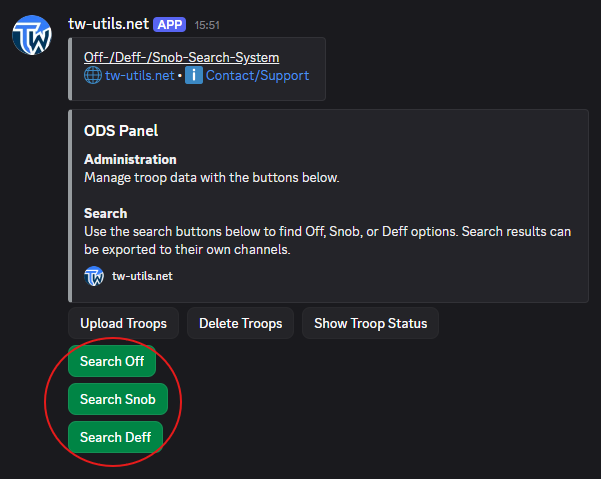
Clicking Search Off opens the modal Find Off Options:
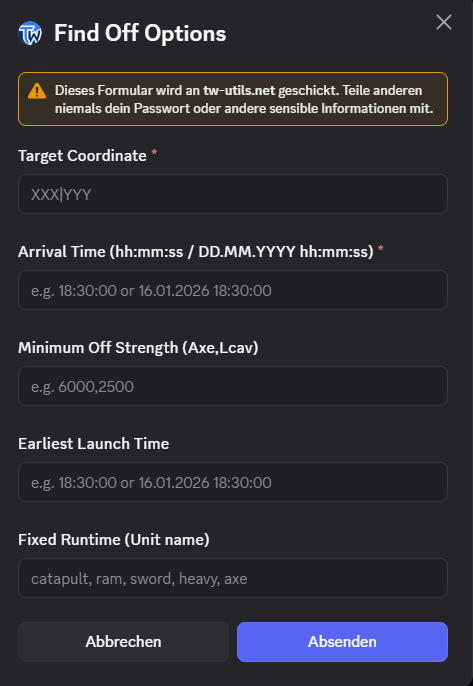
Target Coordinate— coordinate of the target village in the formatXXX|YYY.Arrival Time (hh:mm:ss / DD.MM.YYYY hh:mm:ss)— desired arrival time; justhh:mm:ssis enough for „today",DD.MM.YYYY hh:mm:ssfor a later date.Minimum Off Strength (Axe,Lcav)(optional) — minimum strength of the offs you are looking for, expressed as Axe and Light Cavalry counts (e. g.7000,3000). Offs below this threshold are not included in the hit list.Earliest Launch Time(optional) — earliest allowed launch time; commands that would have to be launched before this time are filtered out.Fixed Runtime (Unit name)(optional) — restricts the search to a specific unit runtime (e. g. axe runtime only), when the Off command should run with a fixed unit.
Clicking Search Snob opens the modal Find Snob Options:
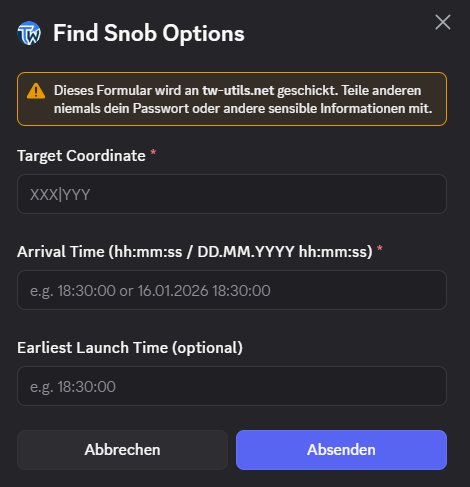
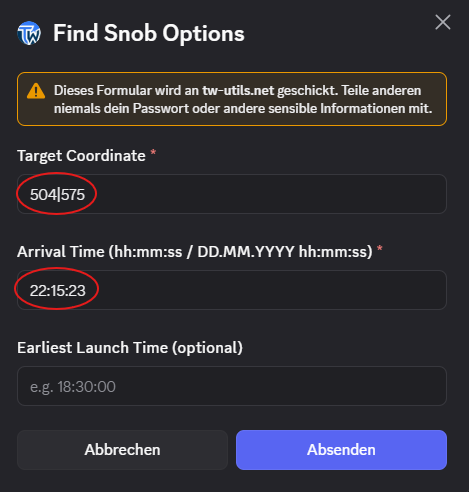
Target Coordinate— coordinate of the target village.Arrival Time (hh:mm:ss / DD.MM.YYYY hh:mm:ss)— desired arrival time of the snob.Earliest Launch Time (optional)— earliest allowed launch time for the snob.
Clicking Search Deff opens the modal Find Deff Options:
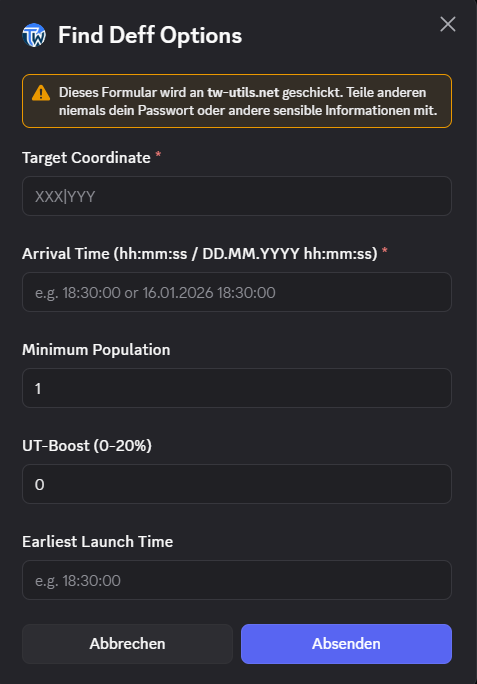
Target Coordinate— coordinate of the target village in the formatXXX|YYY.Arrival Time (hh:mm:ss / DD.MM.YYYY hh:mm:ss)— desired arrival time of the deff.Minimum Population(optional) — minimum population of the source village; prevents small villages from appearing in the hit list.UT-Boost (0-20%)(optional) — option to factor a UT boost into the search request.Earliest Launch Time(optional) — earliest allowed launch time; deff commands that would have to be launched before this time are filtered out.
4. The search result
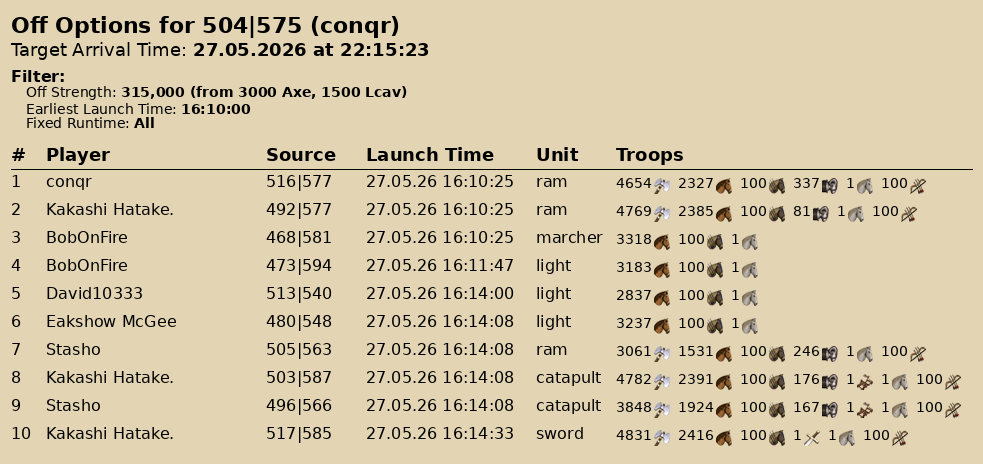
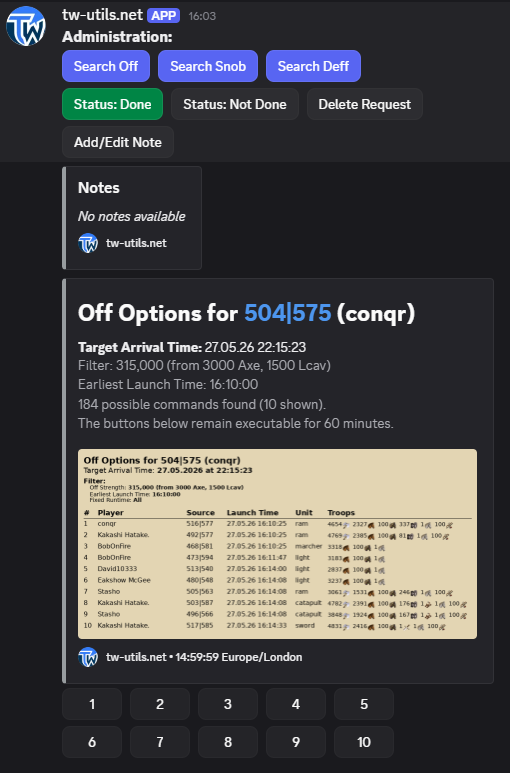
After submitting a search modal, the bot replies with an ephemeral embed that only the searcher sees. It lists all possible commands with village coordinate, troop composition, launch and arrival time.
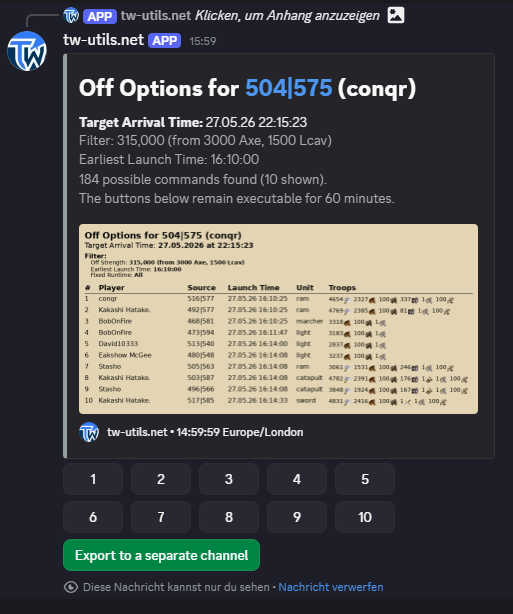
The possible commands are presented neatly in tabular form:
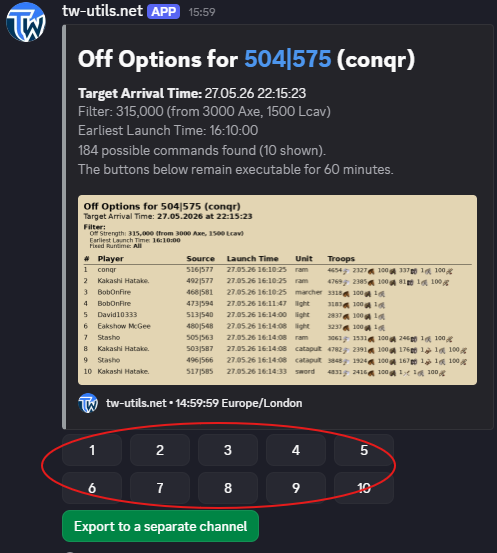
Below the search result, up to ten buttons are available — each of these buttons generates the matching WB command.
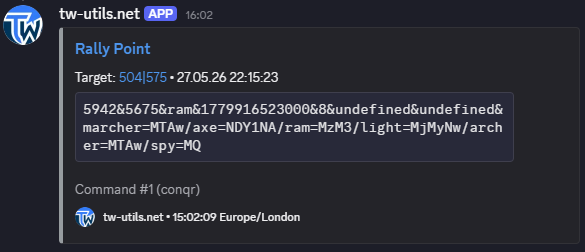
The reply to one of these buttons is headed Rally Point — the heading is a link and takes you straight to the in-game rally point of the source village, so the command can be launched immediately.
Ephemeral response — only visible to the searcher
The hit list is an ephemeral Discord message: only the searcher sees it and it disappears the next time Discord reloads. Anyone who wants to make the result permanently visible and share it with the tribe exports the search into a separate channel — see Section 5.
5. Export the search result
In the ephemeral search result (see Section 4) there is an export button that moves the request into a new, separate channel.

The bot then creates a new channel ❌-<type>-XXX-YYY-PLAYERNAME in the category 🔍 OFF/DEFF/SNOB-SEARCHER.
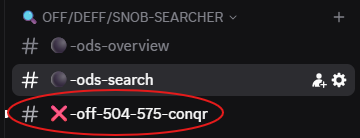
In the new channel the bot posts the search result with all details and the management buttons. The result is now visible to the entire tribe, other players can join the discussion, the searcher can maintain the status, attach notes and start follow-up searches directly from within the exported search request — see Section 6.
6. Features in the search request
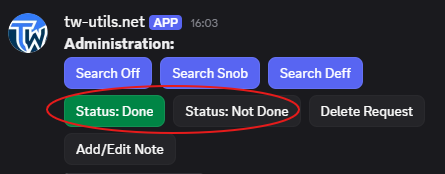
In the exported search request, the management buttons Status: Done / Status: Not Done sit above the search embed and let you mark the request as completed or reset it to open.
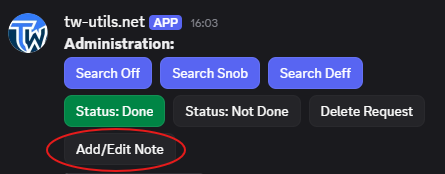
The Add/Edit Note button lets the requester or other users attach notes to the request.
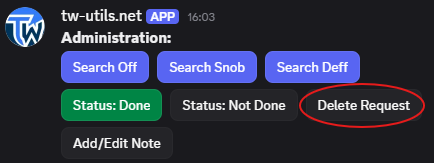
Delete Request deletes the request including its channel after confirming with Yes, delete.
Permission to delete
The request can only be deleted by its creator or by a user with the TWU-Troops role (or higher).
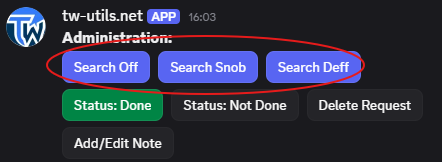
In addition, the search buttons Search Off, Search Snob, Search Deff are available again inside the exported search request.
If you click Search Snob here, for instance, the search modal is already prefilled with the values from the original request (target coordinate, arrival time) — so a follow-up search to the same coord can be started directly, without having to retype the data.
As soon as the status changes, the bot automatically renames the channel — the ❌ prefix switches to ✅ and vice versa. At a glance you can see in the channel tree which requests are still open.
Rate limit on status change
The status Done / Not Done can only be switched once every 10 minutes per exported search request. If you click back and forth too fast, the bot replies with a rate-limit error and the remaining wait time.
7. Overview dashboard
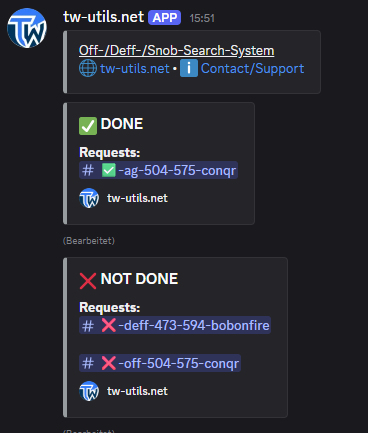
The dashboard channel #⚫-ods-overview shows the current state of all search requests at any time — grouped by status ✅ DONE and ❌ NOT DONE, each entry with type (Off/Deff/Snob), coordinate, searcher and request timestamp. The embed is updated automatically by the bot whenever a request is added, changes its status or is deleted.