Quick-Setup-Guide
This guide walks you through the initial setup of the Discord bot on your tribe Discord in six steps — from inviting the bot to installing your first module. Detailed explanations for each topic can be found on the respective linked subpages.
Prerequisite
Administrator permissions on the Discord server are required for the setup.
1. Invite the bot to your Discord server
Invite the bot to your tribe Discord via the link below. You will be automatically redirected to Discord, where you have to select the server on which the bot should be installed. Then confirm the requested permissions.
Permissions
The permissions included in the invite link are required so the bot can independently create the setup category and the configuration channel. If permissions are revoked afterwards, the setup will no longer work fully.
2. Automatically created configuration channel
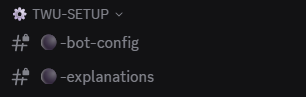
Right after the invite, the bot automatically creates the category ⚙️ TWU-SETUP together with the channel #⚫-bot-config on your Discord server. This channel is the central control for the bot — all further setup steps as well as the later management of the modules run exclusively through buttons in this channel.
In the same category the channel #⚫-admin-logs is created as well, where the bot logs the management actions that were carried out. It is visible to Discord administrators only and needs no setup.
3. Set the game world
Switch to the #⚫-bot-config channel and click on the Bot-Configuration button. A new menu opens with the available configuration options.
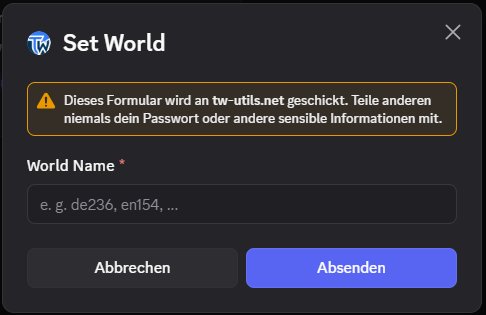
In this menu, click on the Set World button. An input window (modal) appears in which you can enter the game world.

In the World Name field, enter the game world your tribe plays on (e. g. de236 or en154). Then click on Submit to save the entry. The bot is now linked to your game world.
4. Verify your own account
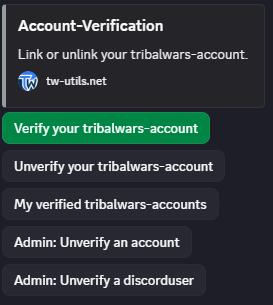
In the #⚫-bot-config channel, click on the Account-Verification button. This opens the menu for verifying your player account.
Click on the Verify your tribalwars-account button. An input window opens for your ingame account name.
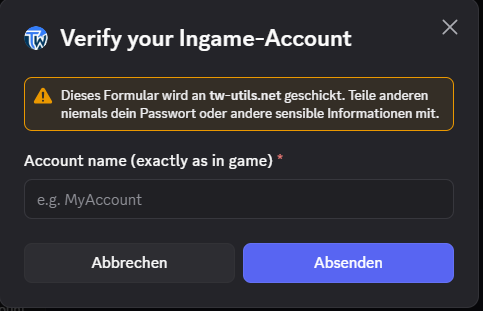
In the Account name (exactly as in game) field, enter your ingame account name — exactly as it is spelled in the game (mind capitalization and special characters). Then click on Submit.
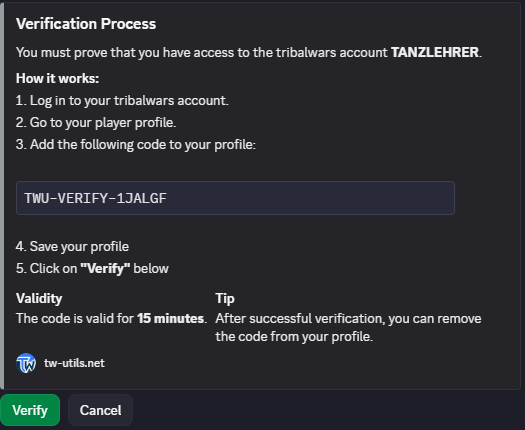
The bot now shows you an individual verification code. Log into the game, open your player profile, paste the code into the profile description, and save the profile. Then switch back to the Discord channel and click on the Verify button in the bot. The bot automatically checks whether the code is stored in your profile and completes the verification.
5. Assign Leader status
In order for the Leader-View to be usable, at least one Discord user must be granted leader permissions. In the #⚫-bot-config channel, click on the Manage Access to Leader-View button. A menu for managing Leader-View access opens.

Click on the Grant Access button to grant a Discord user leader permissions.
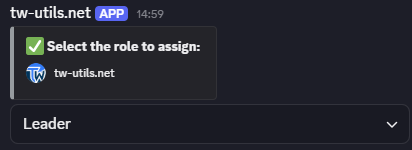
In the first dropdown, select the role the user should receive — choose Leader here.
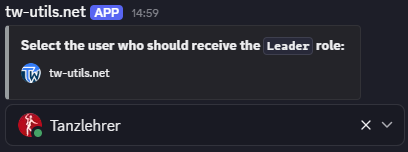
Then, in the second dropdown, select the Discord user who should receive the leader status. The assignment takes effect immediately and the selected user can access the Leader-View from now on.
All further rights are granted in the Leader-View
Via the bot only the Leader role (= TWU-Leader) can be granted — that is the entry point. As soon as a TWU-Leader exists, they grant all further roles (TWU-Troops, TWU-Bunker, TWU-Planner and the additional API roles) directly on tw-utils.net in the Leader-View under Members. The Permission Concept gives an overview.
6. Install bot modules
In order for the bot to provide additional functions for your tribe beyond the basic setup, the desired modules have to be installed separately. In the #⚫-bot-config channel, click on the Manage Bot-Modules button. The module management menu opens.
In this menu, click on the Install button to start the installation of a new module.
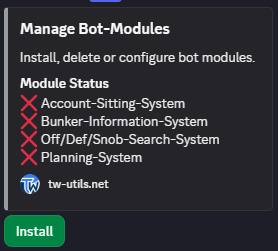
In the dropdown that appears, select the desired module. The bot then installs the module automatically and creates the corresponding channels on your Discord server. Repeat the process for every additional module you want to use.
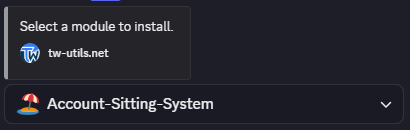
The following modules are available:
- 🏖️ Account-Sitting-System — Vacation replacement for accounts
- 🧱 Bunker-Information-System — Request and approve bunkers
- 🔍 Off/Deff/Snob-Search-System — Find matching off, deff, or snob commands
- 🪓 Planning-System — Organize offensive planning
Setup complete
The basic setup is now finished. The detailed configuration of the individual modules can be found on the respective linked pages. More on managing installed modules (update, uninstall, visibility roles) can be found on the Bot Modules – Setup page.