Step 5: Results
Step 5 shows the finished plan. The step stays locked in the step bar until a calculation has run; afterwards the tool jumps here by itself.
The calculation is started via the button "Calculate" at the bottom of the step bar — it is reachable from every step.
1. Result cards and actions

At the top sits a row of cards comparing actual and target figures: on the left the number that could actually be planned, on the right after the slash the number that should have been planned according to your settings.
- "Cleaner" — the catapult-cleaners from step 3.
- "Fake-Sup" — the fake support from step 4.
- "Snob / Other" — the imported commands from step 2. They only show one number, because they were not planned but taken over.
- "All" — all commands together, highlighted in dark.
If actual and target match, the plan is complete. If the actual figure is lower, the tab Incomplete targets tells you what exactly is missing.
Next to it are three actions:
- "Save Plan" — opens a window in which you give the plan a name under "Name of the plan". Saved plans are then available under "My Plans & Containers" — and can be published, shared and reused from there.
- "Workbench" — copies all commands as workbench strings to the clipboard.
- "Excel" — downloads the complete result as an Excel file.
The imported commands are part of the plan
What gets saved, copied and exported is not only the newly planned cleaners and Fake-Sup but also the snob commands from step 2. That way a single export contains everything belonging to this operation.
2. Overview
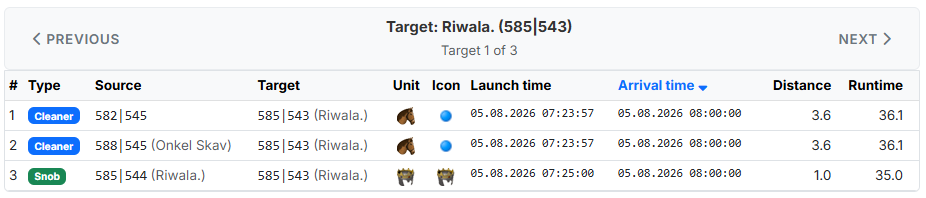
The tab "Overview" shows all commands per target. Use "Previous" /
"Next" to page through target by target; in the search field at the top you
jump straight to a particular target by entering its coordinate (123|456).
The columns:
- "#" — sequential number within the target.
- "Type" — command type as a coloured badge:
Cleaner,Fake-Sup,SnoborAG-Fake. - "Source" — origin coordinate and player.
- "Target" — target coordinate and player.
- "Unit" — the slowest unit, which determines the travel time.
- "Icon" — the command icon of the workbench.
- "Launch time" / "Arrival time" — both columns can be sorted by clicking them.
- "Distance" — distance in fields.
- "Runtime" — travel time in minutes.
This is how you check at a glance whether the cleaners really are sent close to the snob command.
3. Incomplete targets
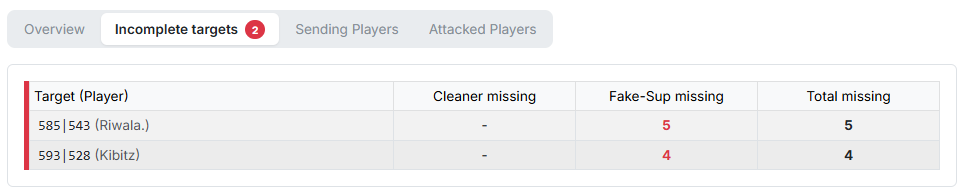
This tab lists all targets for which not all required commands could be planned. A red badge on the tab name shows their number. They are sorted by the total number of missing commands, the most urgent first.
The columns name the Target (Player) and then how many are missing — Cleaner missing, Fake-Sup missing and Total missing. Where nothing is missing, a "-" is shown.
If all targets are supplied, the green message "All targets are complete." appears instead.
What to do when commands are missing
Missing commands almost always mean that too few origin villages qualified. Worthwhile levers: set the max. time difference more generously or switch it off entirely, lower the minimum strength, raise "Cleaners per origin village" or untick "Send Fake-Sup only from def-villages" for the Fake-Sup.
4. Sending players
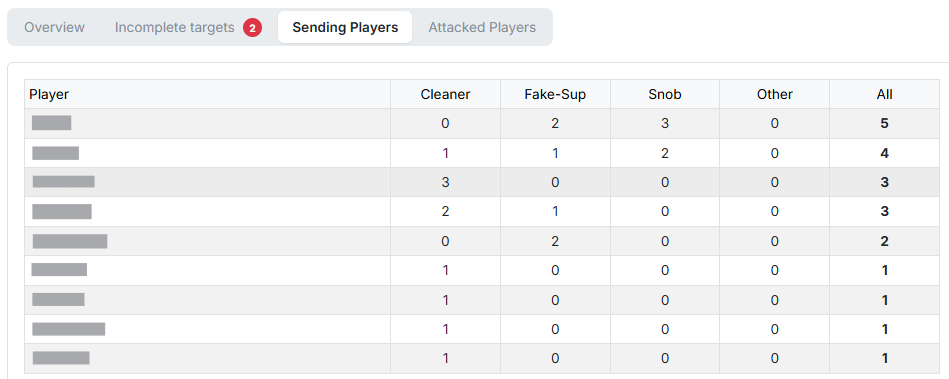
Shows which player sends how many commands — sorted descending by the total number. Columns: Player, Cleaner, Fake-Sup, Snob, Other and All.
Helpful for spreading the load evenly and for spotting when a single player is overloaded.
5. Attacked players
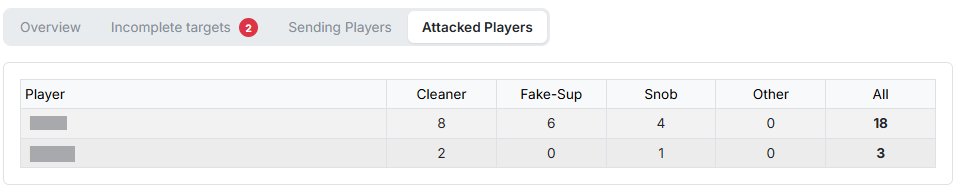
The counterpart: which enemy player receives how many commands. The columns are the same as in section 4, but here they refer to the attacked player.
6. Repeating the calculation
If you are not happy with the result, simply jump back into the step concerned, adjust the settings and press "Calculate" again. Your inputs are preserved.