Planning-System
The Planning-System is the Discord-side bridge to the Off-Planner on tw-utils.net. In addition to the website, players can also use the tw-utils Discord bot to report Snobs, enter launch times and exclude origin villages from their plans. Tribe leadership in turn distributes the finished attack plans. Leaders can also check in on the planning from anywhere via Discord.
Prerequisite: verified TW account
Without a linked account the input buttons and the Download button in the Plan-Distribution channel cannot be used.
1. Module channels
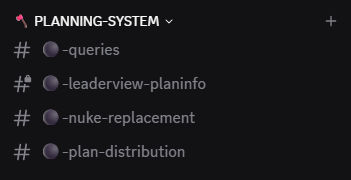
After the setup, the bot creates the category 🪓 PLANNING-SYSTEM with four base channels:
#⚫-queries— reporting channel for players (Snob reports, launch times, off-exclusions)#⚫-plan-distribution— players can download their personal attack plan here#⚫-leaderview-planinfo— leaders can review the planned commands here#⚫-nuke-replacement— enables a structured search for replacement Nukes
2. Snob reports
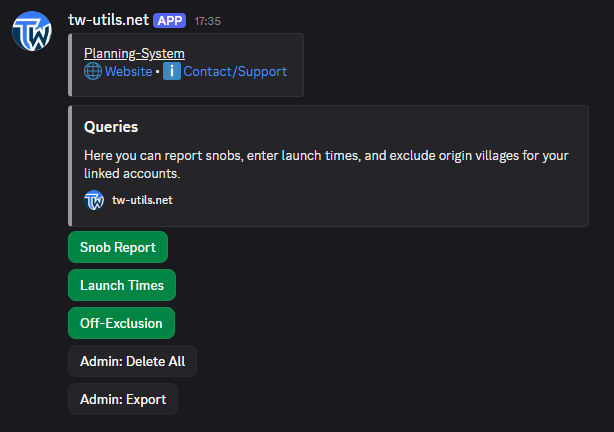
In the #⚫-queries channel you'll find three colour-coded buttons below the Queries embed: Snob Report, Launch Times and Off-Exclusion.
Reports belong to a tribe survey
All reports now run through a
tribe survey that the tribe
leadership creates in the Leader-View. That is why the bot first
asks which survey the action applies to on Add, Show and
Delete. If only one matching survey exists, that question is
skipped. If none exists at all, the bot rejects the action with a
notice.
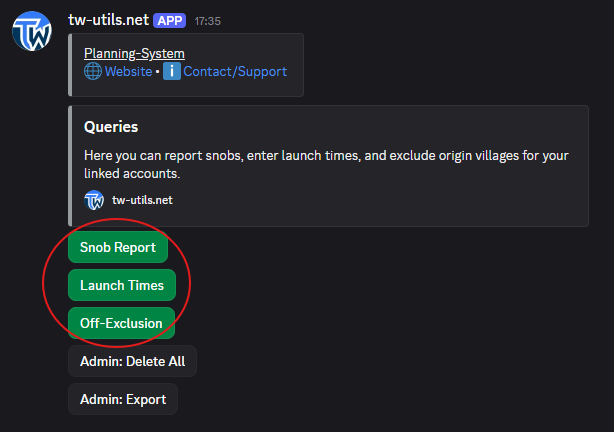
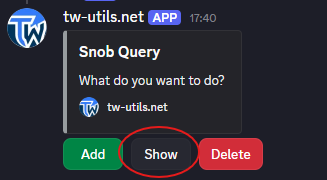
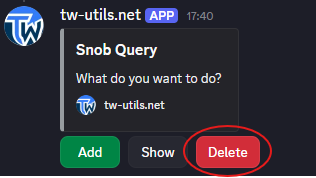
Clicking Snob Report opens an ephemeral sub-menu with the buttons Add, Show and Delete.
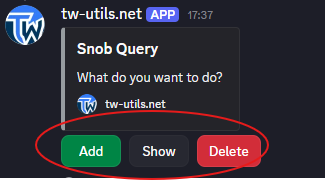
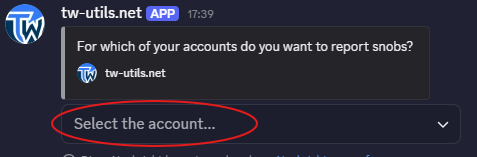
With the Add button you start a new Snob report. First you pick the verified TW account in the dropdown for which the report should apply.
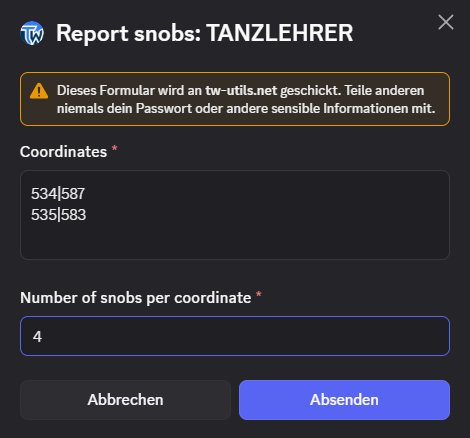
Then the Snob-report modal opens, in which you enter the details of the report.
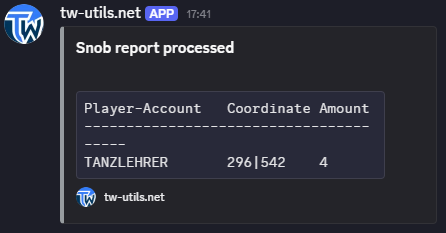
After a successful submission, the bot confirms your report with a short ephemeral success message.
With the Show button you can view all the Snobs you have already reported for the selected account.
With the Delete button you can delete a specific Snob report again.
3. Launch times
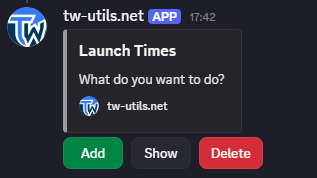
Clicking Launch Times likewise opens an ephemeral sub-menu with the buttons Add, Show and Delete.
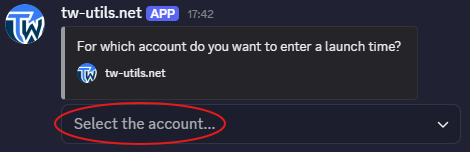
With the Add button you start a new launch-time entry. First you pick the verified TW account in the dropdown for which the time should apply.
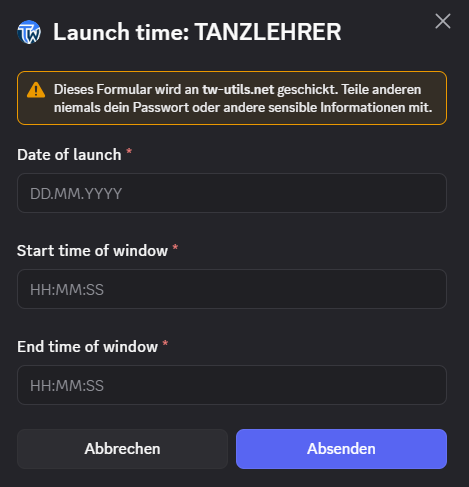
Then the launch-times modal opens, in which you enter your available time window.
With the Show button you can view all the time windows already stored for the selected account. With the Delete button you can delete a specific time window.
4. Off-exclusion
Clicking Off-Exclusion opens the sub-menu with the buttons Add, Show and Delete.
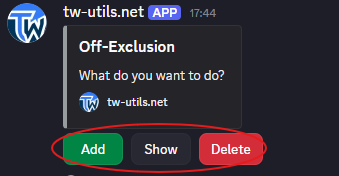
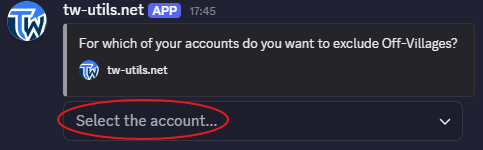
With the Add button you start a new off-exclusion entry. First you pick the verified TW account in the dropdown for which the exclusion should apply.
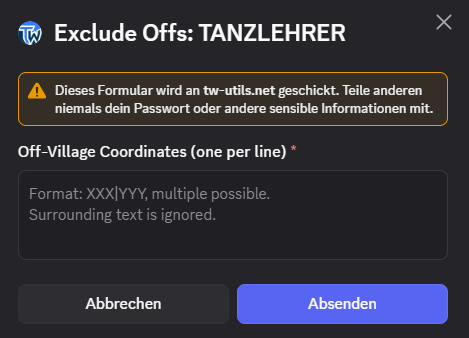
Then the off-exclusion modal opens, in which you enter the origin villages that the planner should not use as Off sources for you.
With the Show button you can view all the off-exclusions already stored for the selected account. With the Delete button you can remove a specific entry again.
5. Plan distribution
In the #⚫-plan-distribution channel you'll find the Download button below the Plan Distribution embed.
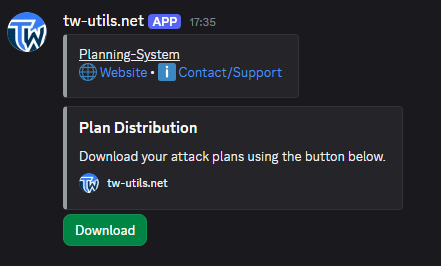
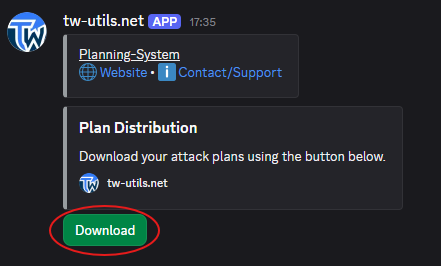
Click Download: The bot checks the player's linked TW accounts and sends them their attack plans for download via Discord DM.
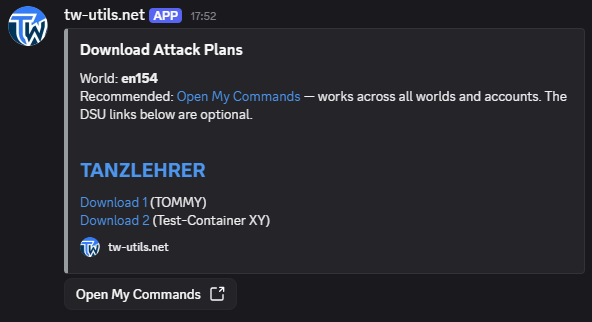
Plan download via DM
For the bot to deliver the plans, direct messages from the bot must be allowed in your Discord settings. Otherwise an ephemeral error message appears in the channel reminding you to enable DMs.
6. Plan information
In the #⚫-leaderview-planinfo channel you'll find the Retrieve Plan Information button below the Plan Information embed.
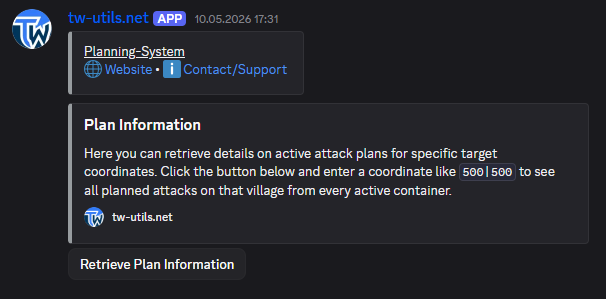
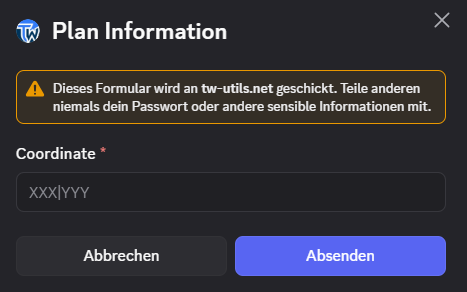
Clicking Retrieve Plan Information opens the Plan Information modal. Enter the desired target coordinate in the Coordinate field in the format XXX|YYY and submit the modal to see the planned commands for that village.
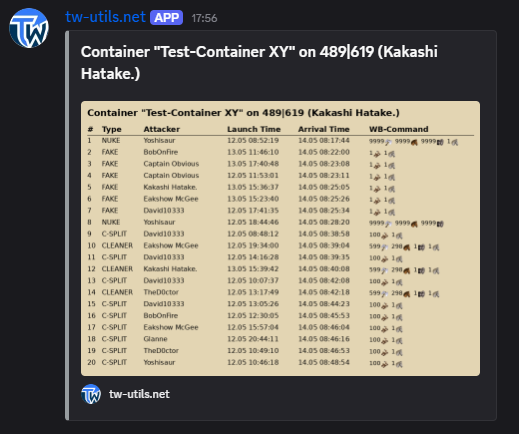
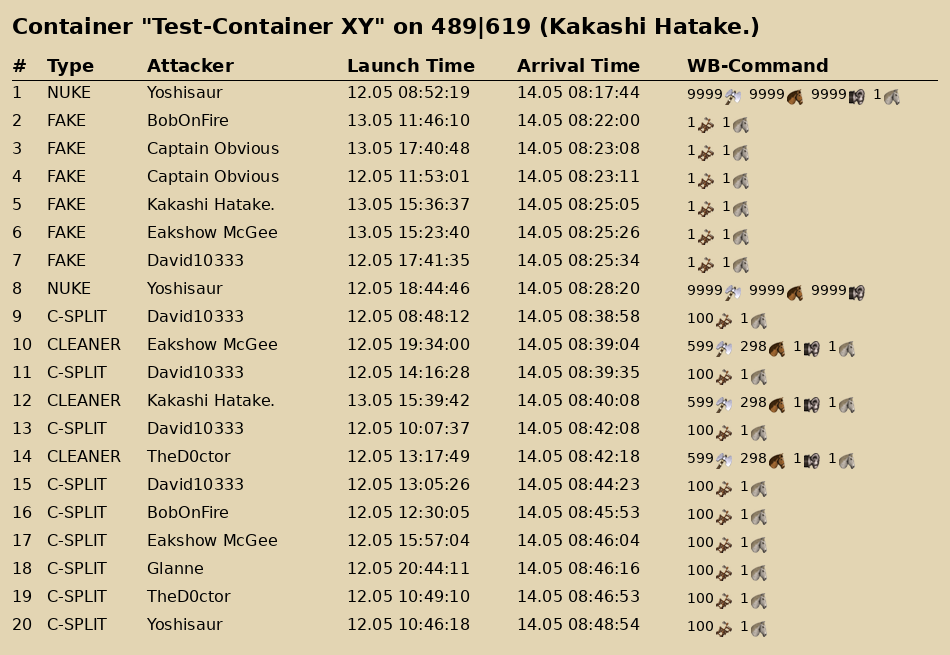
The bot then renders an overview of all currently planned commands from all active plan containers for the given coordinate. The answer is ephemeral — it is visible only to you and disappears again.
The detailed view additionally shows the individual commands with origin village, player, command type as well as launch and arrival time — so you can tell at a glance which players are preparing which command on the target village.
Leaderview-PlanInfo visibility
The #⚫-leaderview-planinfo channel is visible like the other channels of the module; who may see it is controlled by your visibility roles. The Retrieve Plan Information button, however, can only be used by users with the TWU-Planner or TWU-Leader role — and the bot's answer is ephemeral, so only the requester sees it. Plan information thus stays within the tribe leadership.
7. Nuke-Replacement
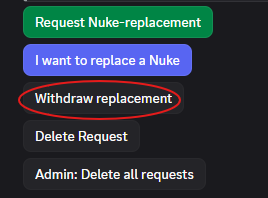
In the #⚫-nuke-replacement channel you'll find five management buttons at the top under the Nuke-Replacement embed; below them, two status embeds (NOT DONE and DONE) list the current state of all replacement requests.
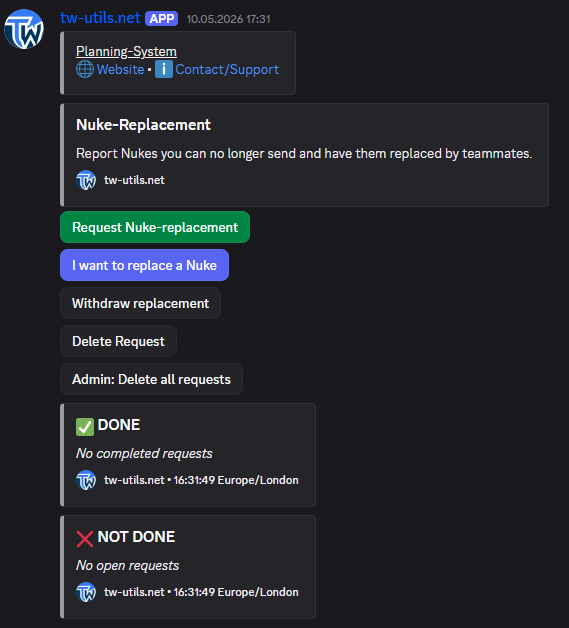
With the Request Nuke-replacement button you submit a new replacement request when you cannot send a planned Nuke yourself and are looking for a fellow tribe member to take it over.
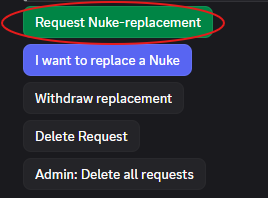
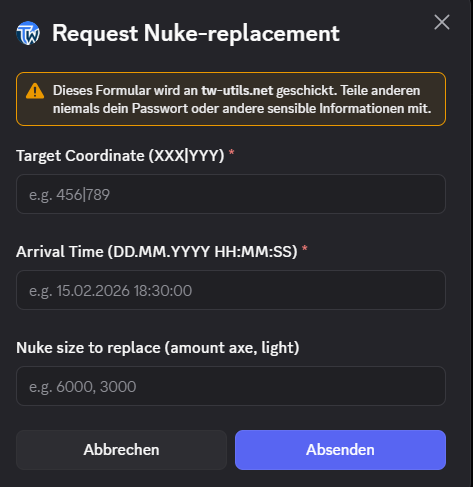
Clicking it opens the request modal with input fields for the target coordinate, the desired arrival time and the Nuke size (entered as axe and light-cavalry count).
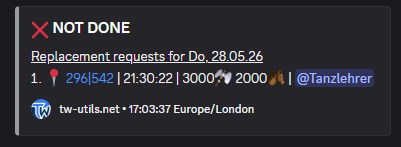
After submitting, the request is sorted into the embed under NOT DONE so all tribe members can see where a replacement is still being sought.
With the I want to replace a Nuke button you take over an existing open request.
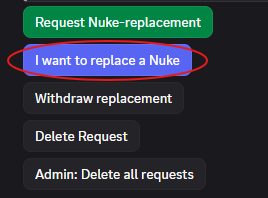
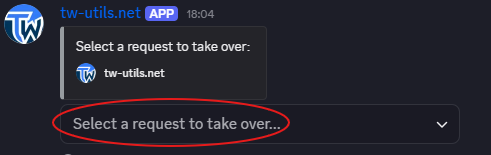
Clicking it first opens a dropdown in which you pick the specific request you want to take over.
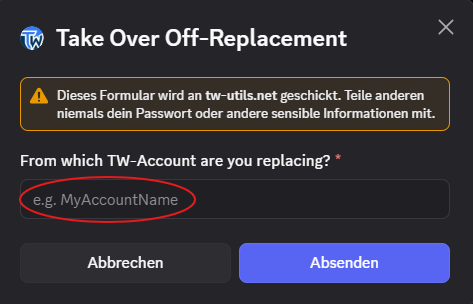
Then an input field follows in which you enter your own verified account that will perform the takeover.
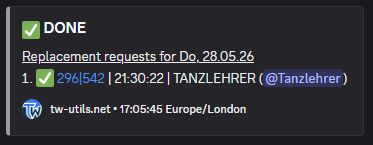
After a successful takeover, the request moves to the DONE section of the embed so it is visible to everyone that a replacement has been found.
With the Withdraw replacement button you can take back a takeover you have already committed to; the request returns to the NOT DONE section.
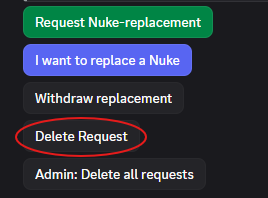
With the Delete Request button you can completely delete your own request once it is no longer needed.
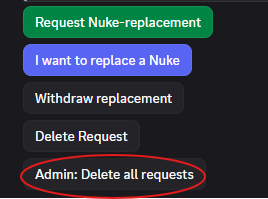
With Admin: Delete all requests you can finally delete all Nuke-Replacement requests in one go; before the deletion a confirmation prompt appears.
Who can delete Nuke-Replacement requests?
A single request can only be deleted by its creator or by a user with the TWU-Planner or TWU-Leader role via Delete Request. The Admin: Delete all requests button for bulk deletion of all requests is only available to those two roles.