Bunker-Information-System
The Bunker-Information-System is where you manage your bunkers. Tribe members submit bunker requests, users with the TWU-Bunker role (or TWU-Leader) approve or reject them. Top-ups can be requested and approved the same way, and bunkers can be dissolved. The module also gives leaders a quick Bunker-Health check and a way to identify and control flex bunkers.
1. Module channels
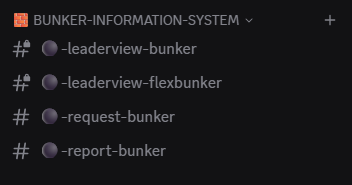
After the setup, the bot creates the category 🧱 BUNKER-INFORMATION-SYSTEM with three channels:
#⚫-leaderview-bunker— leader tools: Bunker-Health check of all approved bunkers and flex-bunker control#⚫-request-bunker— central request channel with the buttons to request, top up, view and dissolve your own bunkers#⚫-report-bunker— channel for reporting and managing enemy bunkers
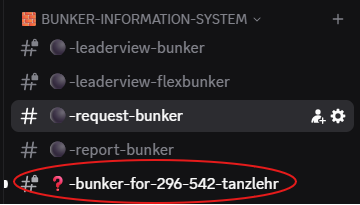
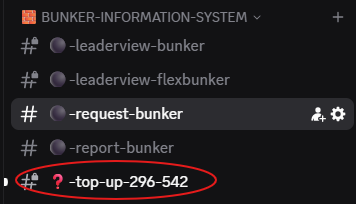
As soon as someone submits a request or a top-up, the bot creates a dedicated channel per coordinate in the same category (e. g. ❓-bunker-for-500-501-Playername or ❓-top-up-500-501). The entire approval workflow runs inside this per-request channel.
2. Request a bunker
Switch to the #⚫-request-bunker channel.
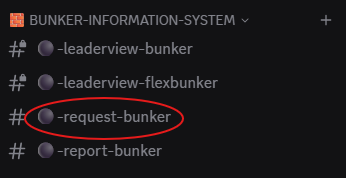
Click the Request Bunker button.
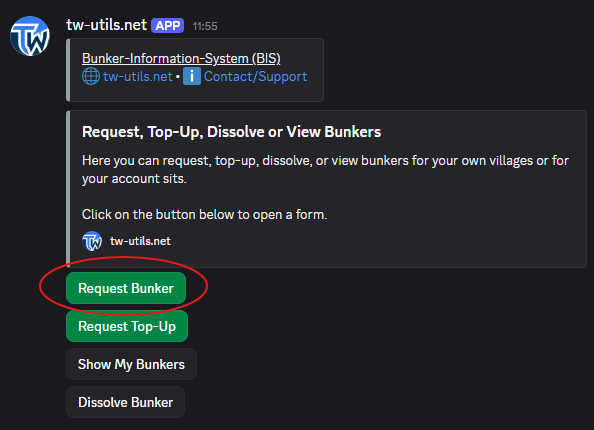
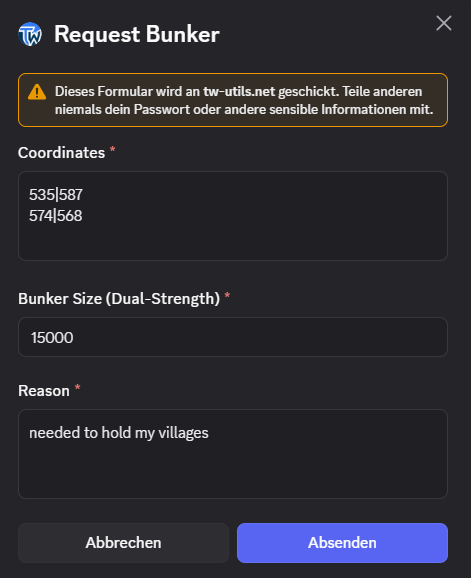
The Request Bunker modal opens with three input fields:
Coordinates— one or more coordinates (e. g.500|501, 503|502, 540|589)Bunker Size (Dual-Strength)— desired dual strength of the bunker (e. g.20000)Reason— reason why this bunker is needed
After submitting, the bot creates a dedicated channel ❓-bunker-for-XXX-YYY-Playername per coordinate in the category.
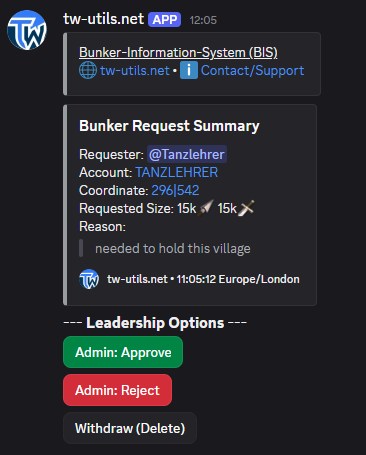
In the new channel the bot posts a request embed with player, coordinate, desired size and reason, plus the approval buttons for TWU-Bunkers.
Multiple coordinates per request
In a single request you can enter as many coordinates as you like — separated by commas or spaces. The bot creates a dedicated request channel per coordinate. Each channel is approved, rejected or withdrawn individually.
3. Approve or reject a bunker
In the per-request channel, TWU-Bunkers see the Admin: Approve button.
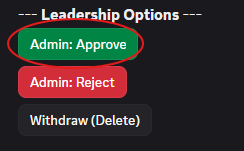
A click opens the approval modal — the mod can enter the finally approved size or accept the originally requested size.
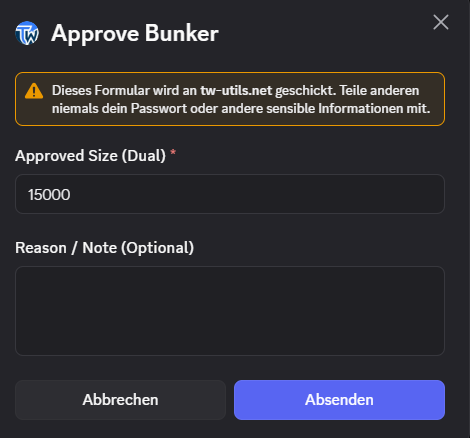
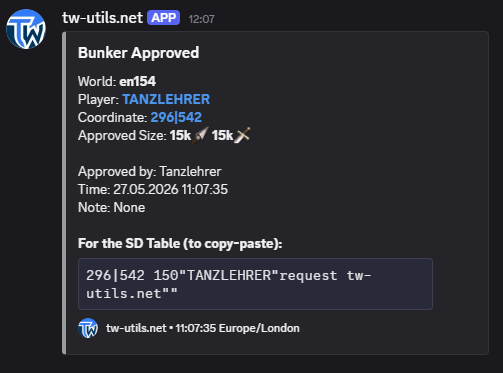
After a successful approval, both the requester and the user who approved the request receive a Discord direct message titled Bunker Approved (or Top-Up Approved). The DM contains all key information plus a ready-made text string to drop straight into the tribe forum. The request channel is automatically deleted after the approval.
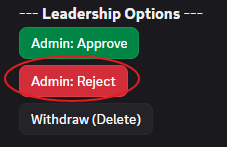
Instead of approving, TWU-Bunkers can also reject a request with Admin: Reject. Both the requester and the rejecting TWU-Bunker then receive a Discord direct message about the rejection; the request channel is likewise deleted automatically.
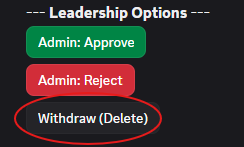
The requester — or a TWU-Bunker — can withdraw the request at any time via Withdraw (Delete). The per-request channel is deleted along with it.
Approval with size override
In the approval modal the TWU-Bunker can assign a different size — for example because the village should have a different strength than originally requested. This size becomes the binding target size and is the basis for the Bunker-Health traffic light in the leader view.
Copy the SD command from the approval DM
The Bunker Approved DM ends with a ready-made SD command string ({coord} {units}"{Player}"request tw-utils.net""). You can paste this block straight into the tribe forum without building it manually.
4. Request a top-up
For already approved bunkers whose strength is no longer sufficient, you can request a top-up in the #⚫-request-bunker channel via the Request Top-Up button.
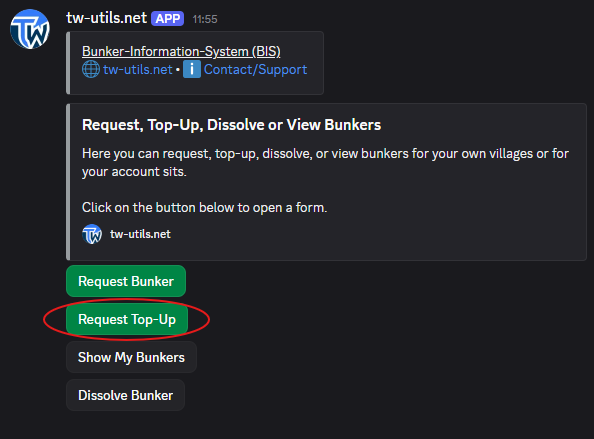
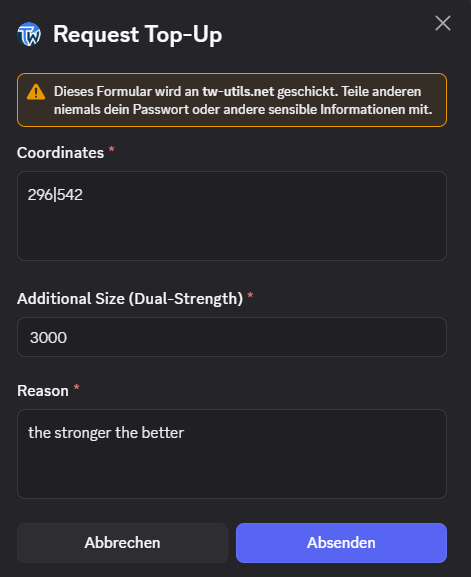
In the Request Top-Up modal you specify:
Coordinates— coordinate(s) of the already approved bunkersAdditional Size (Dual-Strength)— only the additional dual strength (e. g.+5000)Reason— reason for the top-up
Analogous to the bunker request, the bot creates a dedicated channel ❓-top-up-XXX-YYY per coordinate.
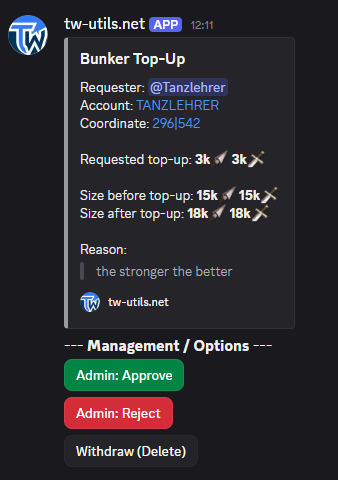
In the channel the bot posts a top-up summary. The approval workflow is identical to Section 3 — on approval the requester receives a DM titled Top-Up Approved, and the additional strength is added on top of the existing target size.
5. View and dissolve your own bunkers
In the #⚫-request-bunker channel every player can use Show My Bunkers to bring up an overview of their approved bunkers at any time.
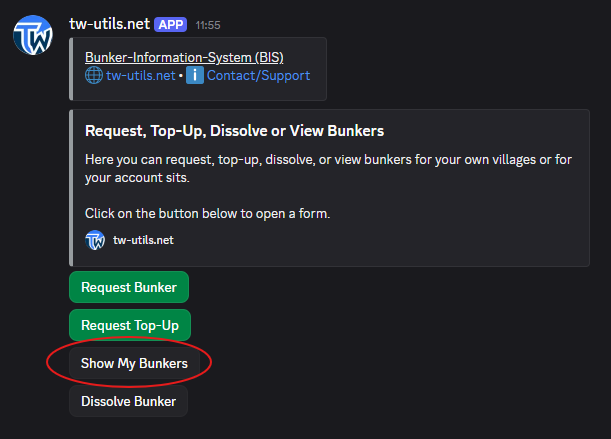
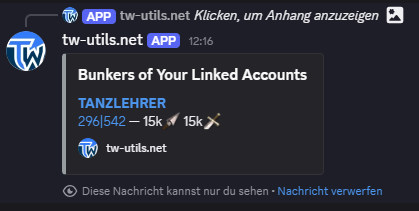
The bot posts an ephemeral list (only visible to you), grouped by your linked Tribalwars account, with a coord link and approved size per bunker. A completed account verification is the prerequisite.
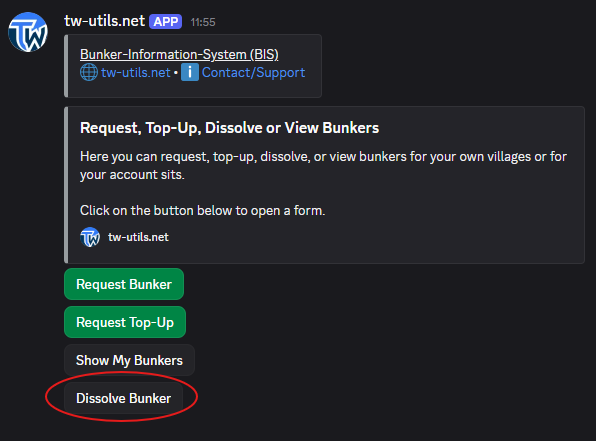
When a bunker is no longer needed (e. g. because the village is in the safe zone), players dissolve their own bunkers via the Dissolve Bunker button.
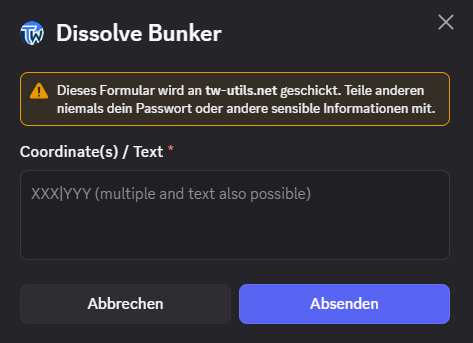
In the Dissolve Bunker modal you enter the coordinates to be dissolved — the Coordinate(s) / Text field also accepts several coordinates or text with embedded coordinates. After a confirmation the bot removes the affected bunkers from the database and updates the leader view. TWU-Bunkers can dissolve other players' bunkers the same way.
6. Bunker-Health & flex-bunker control
The #⚫-leaderview-bunker channel holds a fixed panel with the two leader tools. No bunker list is posted there — you get it at the press of a button.
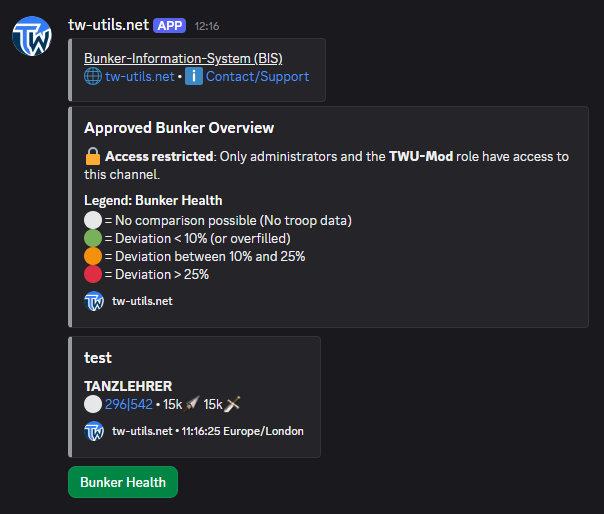
The Bunker Health button compares the approved target size against the currently uploaded troop data for every approved bunker and sends the list back to you as a traffic-light overview — visible only to you, the channel stays untouched.

Bunker-Health traffic-light legend
The Health overview uses a four-step traffic light per bunker:
- ⚪ no troop data — no troop data is available for this bunker
- 🟢 less than 10 % deviation from the target size
- 🟠 10 % to 25 % deviation
- 🔴 more than 25 % deviation
In the same channel, the Flexbunker Control button is available below — it helps to identify villages that tie up high defensive capacity but are not approved bunkers themselves.
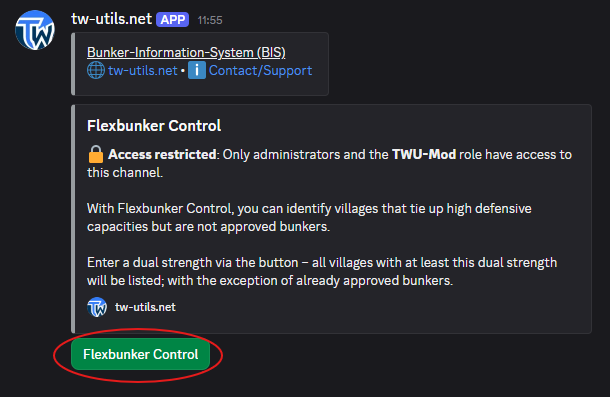
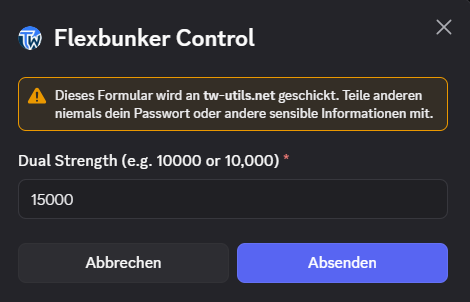
In the Flexbunker Control modal you enter the threshold dual strength:
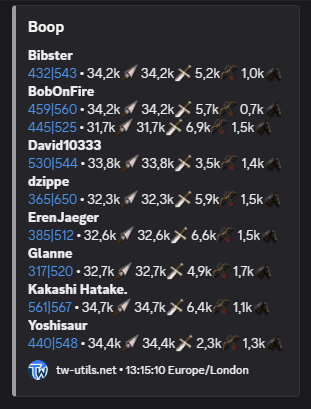
As a result you get a table of all villages in the tribe whose actual dual strength reaches the threshold — grouped by tribe and player, sorted by strength in descending order. Approved bunkers are hidden so that only additional flex bunkers appear.
Rate limit on Bunker-Health & FlexControl
Both Bunker Health and Flexbunker Control are limited for performance reasons to one execution per minute per person. If you press the button twice in quick succession, the second click returns a notice — just wait a moment and click again. It does not block other leaders.
7. Report enemy bunkers
In the #⚫-report-bunker channel, known enemy bunkers are collected. The bot provides four buttons there.
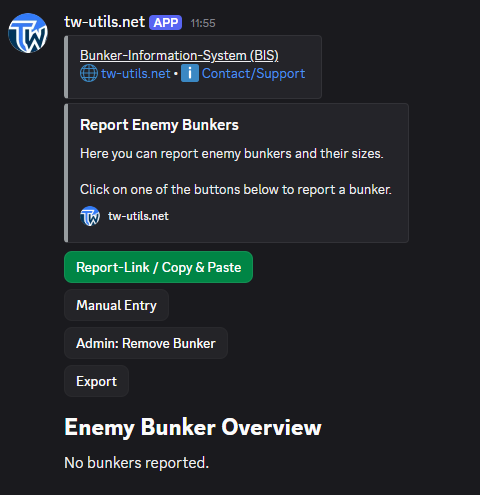
Report-Link / Copy & Paste lets you add enemy bunkers directly from a report — via TW report link, [report] tag or pasted report text. Manual Entry allows manual entry of coordinate, units and info time when no report is available. With Admin: Remove Bunker, TWU-Bunkers can remove individual enemy-bunker entries again, and Export returns the full list as a TSV file for Excel & co.
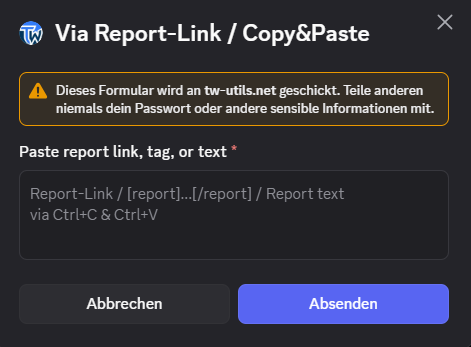
Report-Link / Copy & Paste opens a modal that accepts a report link, [report] tag or pasted report text. The bot parses the units, coordinate and info time automatically from the report.
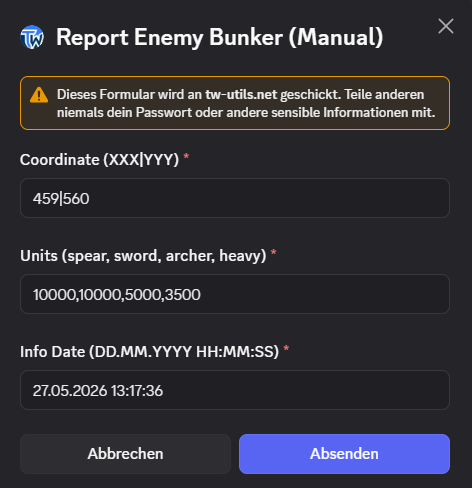
If no report is available, Manual Entry helps with the Report Enemy Bunker (Manual) modal and three fields: Coordinate (XXX|YYY), Units (...) with all units of the respective world, and Info Date (DD.MM.YYYY HH:MM:SS).
No matter which path was chosen — the bot shows a preview and asks for confirmation with the Confirm / Cancel buttons before the entry is saved.
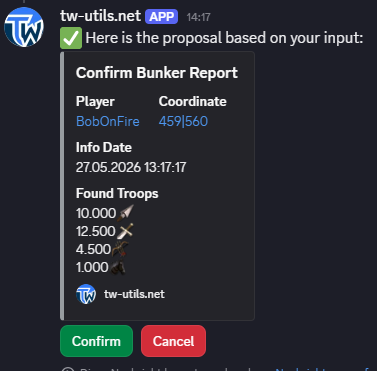
After Confirm, the entry is saved and the bot confirms the successful operation.
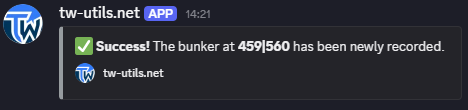
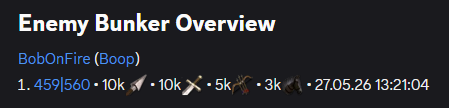
The entry then shows up in the enemy-bunker overview in the channel — grouped by enemy tribe, then by player, with coordinate, unit counts and info time.