Account-Verification
The account verification ensures that only authorized users can link themselves to a player account — meaning only those who actually have access to the respective account. Only on the basis of this verification do the personalized functions of the individual bot modules become available to you.
With every successful verification, a unique triangular link is created between your TW account, your Discord user, and the tribe Discord server. These three reference points ensure that bot functions, permissions, and notifications can always be unambiguously assigned to the right player on the right server.
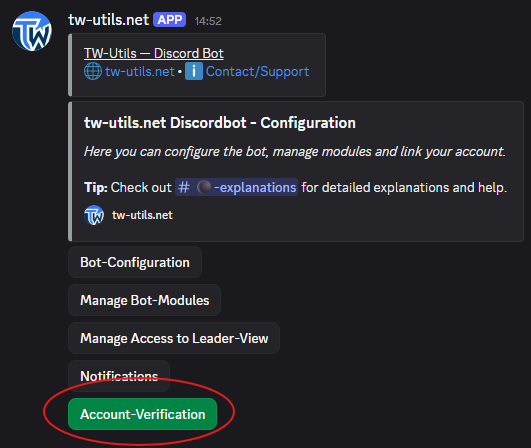
1. Open the Bot-Config channel
Switch to the #⚫-bot-config channel on your tribe Discord. This channel was automatically created in the ⚙️ TWU-SETUP category when the bot was invited and is the central control for all bot functions — there you will find all actions as buttons. Click on the Account-Verification button to start the verification.
2. Start the verification flow
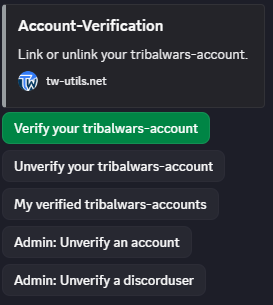
In the opened menu, click on the green Verify your tribalwars-account button to start linking a new account.
3. Enter the ingame account name
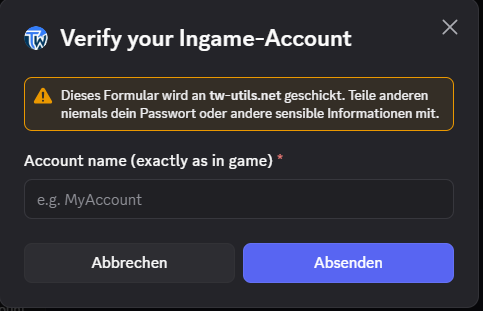
An input window with the title Verify your Ingame-Account opens. In the Account name (exactly as in game) field, enter your player name — exactly as it is spelled in the game (mind capitalization and special characters). Then click on Submit.
4. Receive the verification code
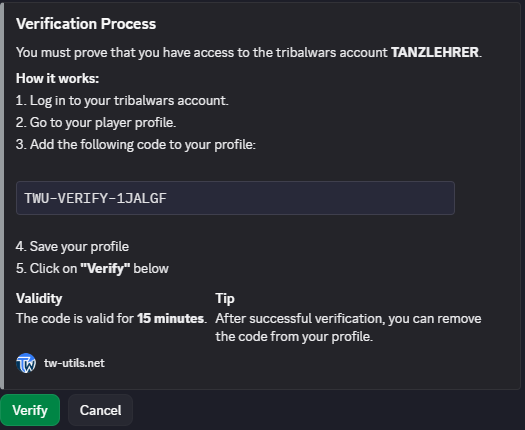
The bot checks whether the entered account exists on the configured game world and then shows you an embed with the title Verification Process. It contains an individual verification code as well as a short step-by-step instruction. Copy the code — you will need it in the next step in the game.
Code validity
The verification code is valid for 15 minutes. If you do not complete the process within this time, you have to start the flow again and will receive a new code.
5. Open your profile in the game
Log into the corresponding game world, open your own player profile, and switch to the edit mode of the profile description.
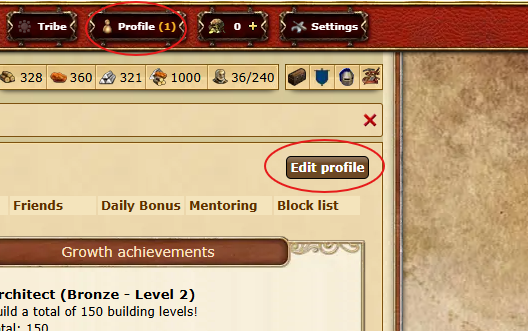
6. Paste the verification code into your profile
Paste the previously copied verification code into your profile description. The exact location within the description does not matter — the bot searches the entire text. Then save your profile.
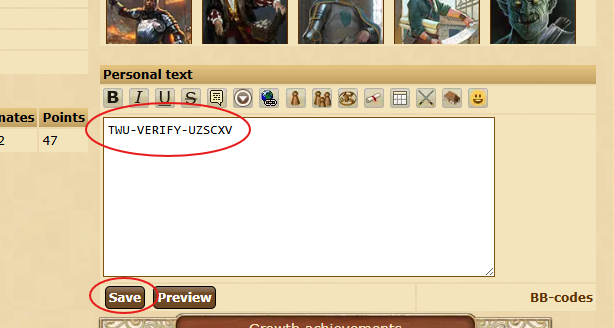
Don't forget to save the profile
Without saving, the code is not stored in your profile and the verification will fail.
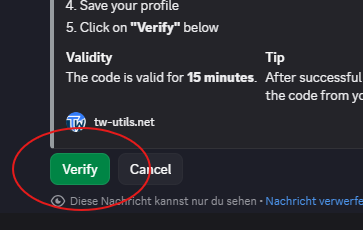
7. Complete the verification in Discord
Switch back to the #⚫-bot-config Discord channel and click on the Verify button in the bot's verification embed. The bot then fetches your profile and automatically checks whether the individual code is stored there.
8. Success message
If the code is found in your profile, the bot confirms the successful link with a success message. The verification is now complete — your Discord user is linked to the player account from now on and you can use the personalized functions of the bot modules.
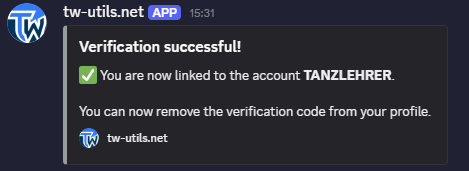
Remove the code from your profile
After a successful verification, you can remove the code from your profile description again — the link remains in place regardless.
Verify multiple accounts
On the same world, you can link multiple accounts to your Discord user — simply repeat this flow for every additional account. With the My verified tribalwars-accounts button you can view the list of your linked accounts at any time. With Unverify your tribalwars-account you can release a link again.
9. Result on tw-utils
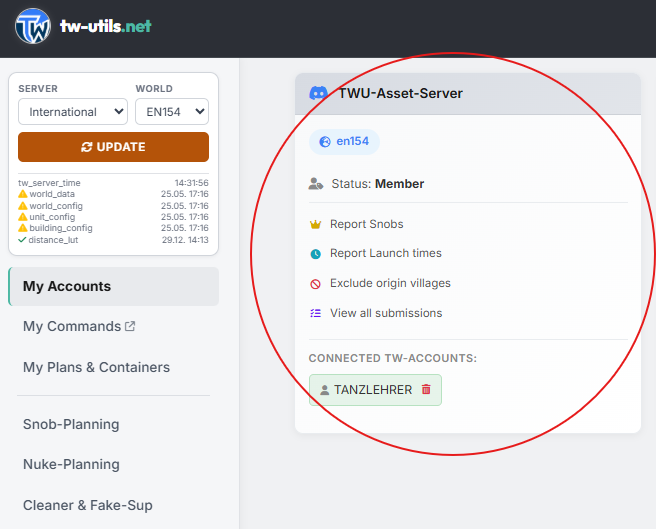
If you already have an account on tw-utils, you can additionally check the successful verification through the website — the corresponding card for your tribe Discord with your member status will now be displayed there.
Note for TWU-Leaders
Anyone holding the TWU-Leader role can release links for other users via the Admin: Unverify an account and Admin: Unverify a discorduser buttons (e. g. for abandoned accounts or a Discord user change).