Saved Plans
Everything you save in the nuke planning tool, the snob planning tool or the cleaner tool ends up under "My Plans & Containers". The page has two tabs: Saved Plans — the subject of this page — and Published Containers, described under Published Containers.
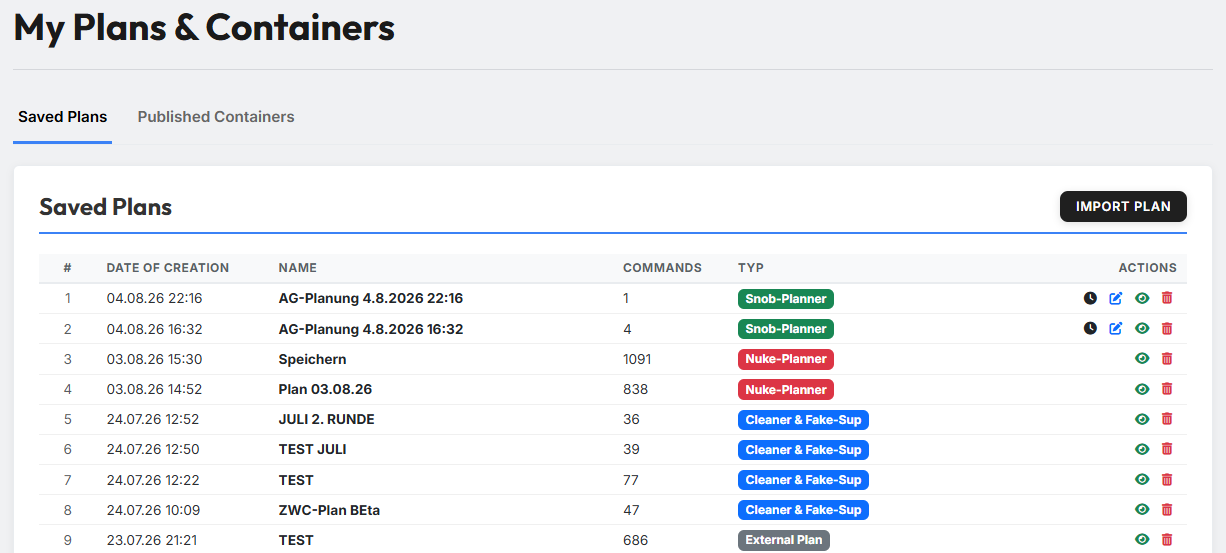
1. The plan list
Per row you see the date of creation, the name, the number of commands it contains and the plan type as a coloured badge:
| Badge | Origin |
|---|---|
| Snob-Planner | snob planning tool |
| Nuke-Planner | nuke planning tool |
| Cleaner & Fake-Sup | cleaner & Fake-Sup tool |
| External Plan | read in via "Import plan" (see section 2) |
The list only ever shows plans of the currently selected world. If no world is selected, a corresponding note appears instead.
On the right sit the row actions:
- Eye — view the plan (see section 3).
- Bin — delete the plan. This cannot be undone.
- Clock and pencil — for snob plans only. The clock opens the page for adjusting the launch times afterwards, the pencil loads the plan back into the snob planning tool.
Other plan types cannot be edited afterwards
Nuke and cleaner plans are opened for viewing, not for changing. If something needs to change, you recalculate in the respective tool and save again.
2. Importing a plan
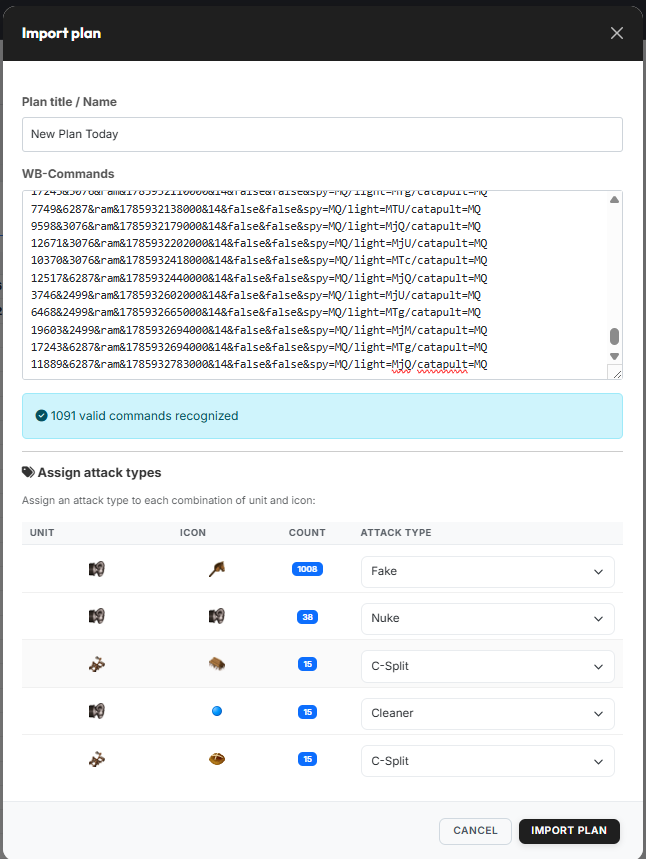
Via "Import plan" you bring commands into tw-utils that were created outside the planning tools — for instance from someone else's plan or straight out of the workbench.
- Enter the plan title / name.
- Paste the WB-Commands. Below, the tool reports back immediately how many valid commands it recognised; unusable lines are quietly ignored.
- Under "Assign attack types" you assign an attack type to each combination of unit and icon (nuke, fake, C-split, cleaner and so on). The Count column shows how many commands sit behind each one.
- "Import plan" creates the plan as an External Plan.
What the assignment is for
From the WB commands alone there is no telling whether a line is meant to be a nuke, a fake or a cleaner. Only the assignment turns them into a plan that the plan viewer and the Leader-View can read correctly.
3. The plan viewer
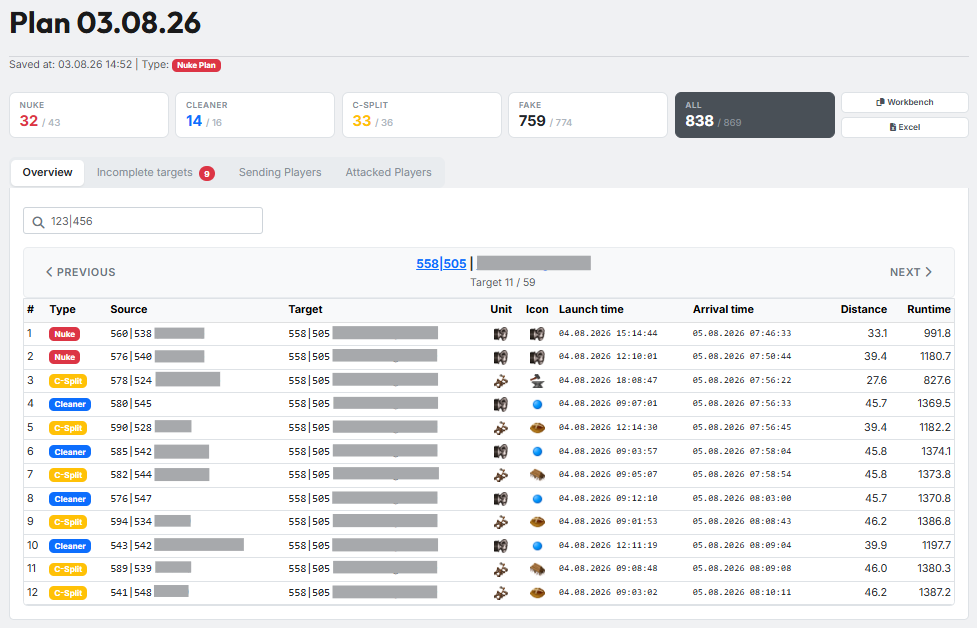
The eye opens the plan in a view of its own. At the top you find the name, the time it was saved and the type, below that the metric cards — per command type the ratio of actually planned to intended commands (for instance "Nuke 32 / 43"), and the total on the far right. Next to them sit the "Workbench" and "Excel" buttons.
Below, the view is split into four tabs:
- Overview — the commands target by target, with a pager and a search field.
- Incomplete targets — targets that received fewer commands than intended. The number in the tab shows how many there are.
- Sending Players — who provides how many commands.
- Attacked Players — who the plan hits.
Snob plans look different
For snob plans the viewer shows the target view of the snob planning tool with its train table instead of these four tabs.
Next up: Published Containers.