Step 2: Launch times
In step 2 you define the launch times. The tool plans every command so that its launch time falls into one of these valid windows.
1. Default launch windows
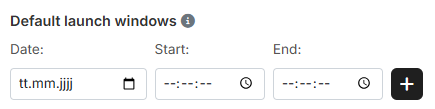
Enter "Date:", "Start:" and "End:" and apply the window with the plus button. The windows you created collect on the right; each one can be removed individually. You can create as many windows in a row as you like.
As soon as you fill in "Start:" and leave the field, the tool sets "End:" to 15 minutes later. This overwrites a value already entered there — so always fill in "End:" after "Start:".
Who the default windows apply to
The default windows apply to all players for whom no individual times are entered.
If two default windows overlap, the tool rejects the second one instead of quietly merging them.
2. Individual times

Individual times apply per player and replace the default windows for that player. There are two ways to get them into the tool.
Individual times take precedence
Wherever individual times are entered, they completely replace the default launch windows for that player. Default and individual windows therefore do not mix.
Importing from a tribe survey
If your fellow players have reported their launch times via a tribe survey, you select the survey in the dropdown and apply it with the plus button. The tool assigns the reported windows to the respective players.
The section only appears if at least one survey exists for the currently selected world and you hold planning rights on a Discord server for this world.
Uploading individual times
Alternatively you upload a .txt or .csv file. One line per time window, the
values separated by commas:
For example:
Testuser A,10.05.2026,10:00:00,10.05.2026,10:07:00
Testuser A,10.05.2026,12:00:00,10.05.2026,12:15:00
Testuser B,10.05.2026,11:30:00,10.05.2026,12:00:00
Testuser B,10.05.2026,17:15:00,10.05.2026,18:15:00
Testuser C,10.05.2026,21:00:00,10.05.2026,21:15:00
The date is written as DD.MM.YYYY, the time as HH:MM:SS. Several lines per
player are allowed. The header row in the example above is only there for
explanation — the file contains data rows exclusively.
Delete all individual times
As soon as at least one player has individual times, the button "Delete all individual times" appears. It removes them in one go, no matter whether they came from a survey or an upload. The default windows remain untouched.
3. Launch times per player
Below the separator you permanently find the overview "Launch times per player" with three columns:
- "Player" — every player for whom troops were imported.
- "Source" — whether
DefaultorIndividualapplies to them. - "Active time windows" — the windows that are used to plan for them.
This is how you see before the calculation whether every player really has a time window. Use the search field to filter for individual players.
The table stays empty as long as no troops are imported — it is derived from the player list of the troop import and then points you to step 1.
Next up: Step 3: Arrival Times.