Step 1: Troops
In step 1 you define which villages may be planned from. You upload the troops, take individual origin villages out of the planning if needed, and see at the end how many nukes are actually available.
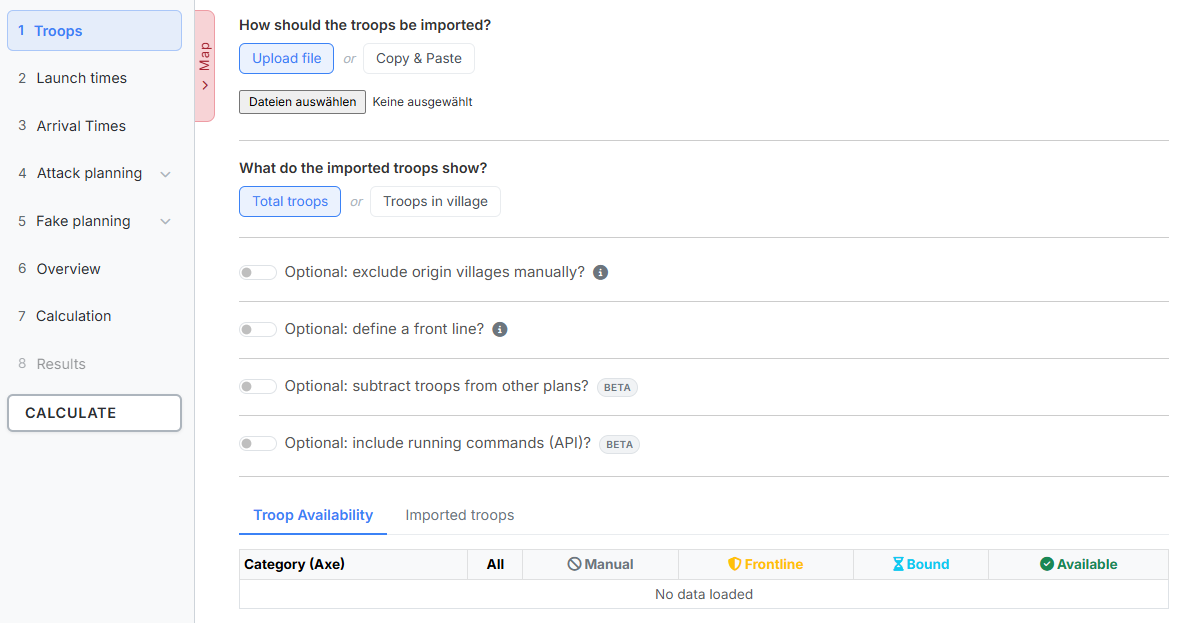
On the left you find the step bar. You can jump between the steps at any time — the tool does not enforce a fixed order. The steps 4. Attack planning and 5. Fake planning expand their sub-steps as soon as you select them; behind each sub-step you see the number of targets entered there. At the very bottom sits the "Calculate" button, which is reachable from everywhere. Step 8. Results stays locked until a calculation has run.
On the left edge of the content area you also find the "Map" tab. It opens the overall map, which is available in every step — see The Overall Map.
1. Importing troops
Under "How should the troops be imported?" you choose between two equivalent ways.
Upload file
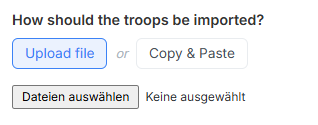
Via "Upload file" you load one or more TXT files. The most convenient way to create these files is the quickbar script "Download Tribe Info".
Expected format:
Coords,Player,spear,sword,axe,archer,spy,light,marcher,heavy,ram,catapult,knight,snob
483|520,Testuser A,2421,6099,100,5963,50,50,3632,200,5,279,0,8
543|538,Testuser A,100,100,6027,100,6,3014,100,100,159,5,0,0
467|559,Testuser A,3779,4836,100,4803,40,50,6309,1584,5,80,0,0
465|523,Testuser B,4298,5495,100,6752,23,50,5761,1131,5,35,0,0
468|515,Testuser B,721,4160,100,2280,61,50,5935,832,5,308,0,4
What matters is the header row: it must contain the word Coords, and the
columns after it must name the units in the same order in which they appear in
the rows. Which units occur depends on the world — on worlds without archers,
archer and marcher simply drop out. The first column is always the
coordinate, the second always the player name.
Copy & Paste
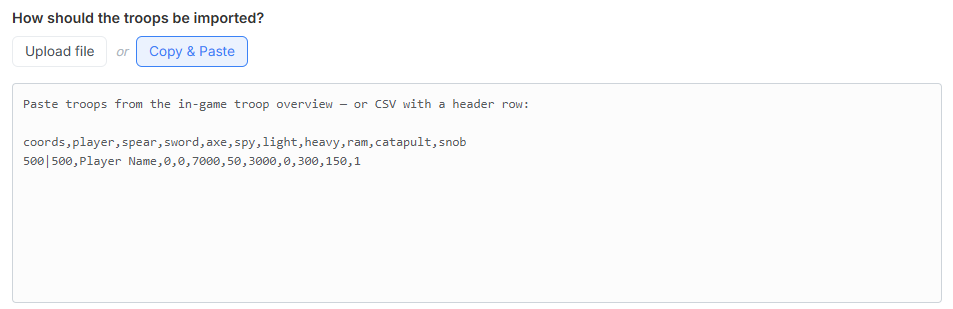
Via "Copy & Paste" you paste the troops straight from the in-game troop overview (Ctrl+A, Ctrl+C). The import starts automatically when you paste. Alternatively the field also accepts the same CSV data as the file upload — header row included.
What do the imported troops show?
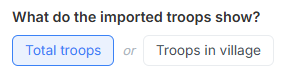
This choice is mandatory for both import paths:
- "Total troops" — all troops of the village, including the ones currently on their way.
- "Troops in village" — only the troops currently standing in the village.
When pasting from the in-game overview, the tool looks for exactly those rows that begin with the selected keyword. If the choice does not match your data, it says so explicitly instead of quietly finding nothing.
Consecutive planning requires the Total troops mode
The two sections Subtract troops from other plans and Include running commands (API) work with troops that are currently on their way. In the mode "Troops in village" the tool therefore hides these sections.
2. Excluding origin villages
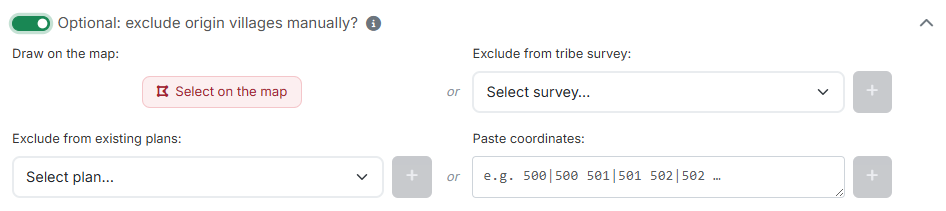
The switch "Optional: exclude origin villages manually?" opens a section with four equivalent ways. Whatever you exclude here is completely out of the planning:
Excluded really means excluded
Not a single command is planned from villages excluded here — neither nukes nor catapult-cleaners, C-splits or fakes.
"Draw on the map:" — the button "Select on the map" opens the overall map in selection mode. There you click individual villages or drag a lasso around a whole area with the mouse button held down. How exactly that works is described under The Overall Map · Selecting by click and lasso.
"Exclude from tribe survey:" — if your tribe has reported villages via a tribe survey that should not be planned with, you select the survey in the dropdown and confirm the selection with the plus button. The section only appears if you hold planning rights on a Discord server for this world and at least one survey exists there.
"Exclude from existing plans:" — excludes all origin villages of an already saved plan in one go. After selecting it in the dropdown, the list of command types contained in the plan appears under "Select command types:". Behind every type you see how many origin villages it contains and how many of them are excludable. Only once at least one type is ticked can the plus button be pressed.
What excludable means
Excludable are only those origin villages that are contained in the plan, appear in your uploaded troops and have not been excluded yet. So upload the troops first — otherwise the counter shows a "—" instead of a number.
"Paste coordinates:" — for individual villages. Surrounding text does not matter, the tool picks out the coordinates by itself.
At the bottom of the section you find a table "Excluded origin villages". Use the search field to filter by player or coordinate; with "Delete all" you empty the list again.
3. Defining a frontline
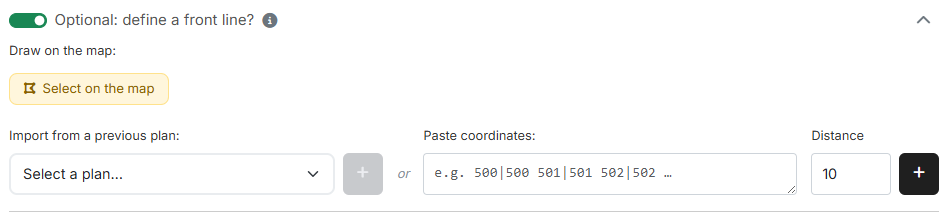
The switch "Optional: define a front line?" determines which villages count as frontline villages. That keeps them mobile so they can react to attacks at short notice.
Frontline villages may still fake
No nukes, catapult-cleaners and C-splits are planned from frontline villages. Fakes may still start from there.
Here, too, there are three ways:
- "Draw on the map:" — "Select on the map" opens the map in drawing mode. Unlike excluding, this creates areas: you drag a closed outline with the mouse, and the origin villages from your troop import inside it belong to the frontline. Several areas are possible. Areas that contain not a single origin village are discarded when you apply them — and without uploaded troops the drawing mode cannot be started at all.
- "Import from a previous plan:" — takes over the saved frontline of an earlier nuke plan of this world and merges it with what is already there. Only plans of the currently selected world are offered; if a plan contains no frontline, the tool says so.
- "Paste coordinates:" + "Spacing" — the classic way. The spacing in
fields creates a ring around every entered coordinate; everything inside
counts towards the frontline. The default is
10.
The list below first shows the drawn areas in frontline (each with the number of villages it contains and an ×) and below them the individual villages in frontline. On the overall map the frontline can be shown at any time via the "Frontline" chip.
4. Subtracting troops from other plans
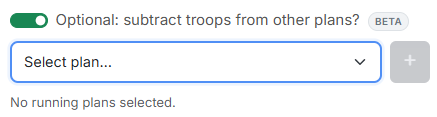
The switch "Optional: subtract troops from other plans?" is the heart of consecutive planning: when an operation is already running, the troops planned there are no longer available for the new plan — yet they are still contained in your uploaded troop data, because you read it out before sending.
Select the running plans in the dropdown and add them with the plus button; the selected plans appear as chips below. The tool then works out which units are bound in which village and subtracts them.
Which troops drop out as a result is shown in the "Bound" column of the troop availability — that is also where you get to the details.
5. Including running commands (API)

The switch "Optional: include running commands (API)?" goes one step further than the previous one: instead of calculating from saved plans, it uses the actually running commands that your fellow players have uploaded through the tw-utils API — for instance with a userscript of their own (see Running Commands). That is more precise, because it also covers commands that never came from a plan at all.
Below the switch you see a line such as "API uploads from 12 accounts found and taken into account." — or "No uploads available for this world." if nobody has uploaded anything yet.
The section only appears if you hold the right to read running commands on a Discord server for this world.
6. When were the troops read out?
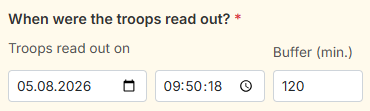
As soon as one of the two switches from section 4 or 5 is active, this shared strip appears. It is a mandatory field, because without it the tool cannot decide which commands were already on their way at the time you read out your troops and which were not.
- "Troops read out on" — date and time at which you copied the troop overview or created the file.
- "Buffer (min.)" — a safety window around that point in time, default
120. It absorbs anything that happened between reading out and planning.
7. Troop availability
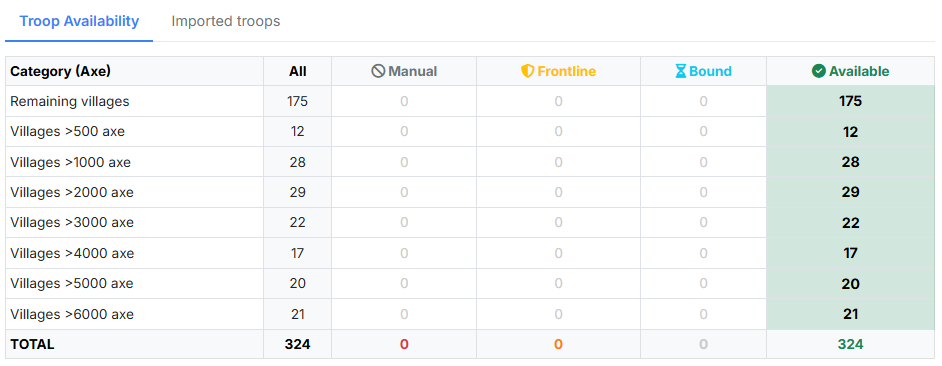
At the very bottom you see at a glance what is left of your troops. The table
is grouped by "Category (Axe)" — that is, by the number of axemen per
village (Villages >500 axe, >1000 axe … as well as Remaining villages).
The columns:
- "All" — all imported villages of this category.
- "Manual" — excluded manually (section 2).
- "Frontline" — blocked by the frontline (section 3).
- "Bound" — bound by running operations (sections 4 and 5).
- "Available" — what is left for planning after all deductions.
The footer row TOTAL sums up all categories.
If a number in the "Bound" column is underlined, you can click it: the window "Bound villages (running actions)" opens with the columns Village, Bound units, Reason and Free from. Every row is a single binding — a village can have several that become free at different times.
Via the second tab "Imported troops" you see the raw data village by village, with a search field for player or coordinate.
Next up: Step 2: Launch times.