Account-Sitting-System
The Account-Sitting-System manages and organizes vacation replacements. Players can submit sitting requests on a per-day basis, other players take over individual or multiple time slots, and the bot automatically cleans up after the sitting ends. Requests are visible immediately without approval — every normal member can take over open slots.
1. Module channels
After the setup, the bot creates the category 🏖️ ACCOUNT-SITTING-SYSTEM with two base channels:
#⚫-request-account-sitting— central request channel with the button to create a new request#⚫-overview-account-sitting— dashboard showing all currently running or taken-over sittings as well as any open slots
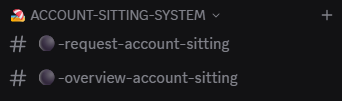
As soon as someone submits a request, the bot additionally creates a dedicated channel per request in the same category. The entire takeover workflow (take over, cancel, delete) happens in this per-request channel. After the sitting ends, this channel cleans itself up — see section 7.
2. Create a sitting request
Switch to the #⚫-request-account-sitting channel and click the Request Account-Sitting button.
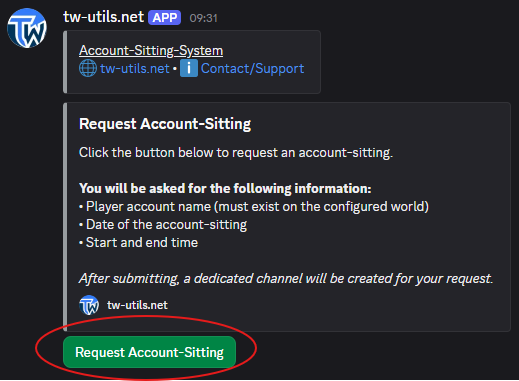
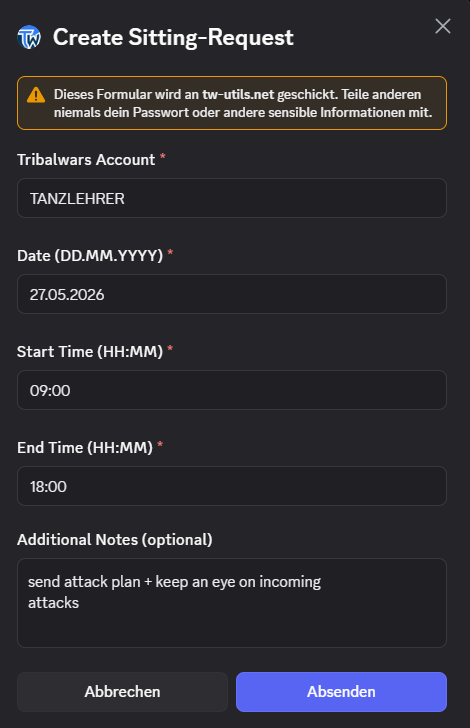
The Create Sitting-Request modal opens with five input fields:
Tribalwars Account— name of the account that needs coverDate (DD.MM.YYYY)— the day the sitting will run onStart Time (HH:MM)— start time of the replacementEnd Time (HH:MM)— end time of the replacementAdditional Notes (optional)— free-form note to the sitter
Single-day requests
Each request covers exactly one day. If you want to cover multiple days (e. g. a long weekend or an entire vacation week), create a separate request for each day.
Times in world time
All times in sitting requests and on the dashboard refer to the game world's time — not your local time zone. Especially for international worlds this can differ from your real-world time.
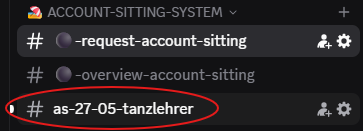
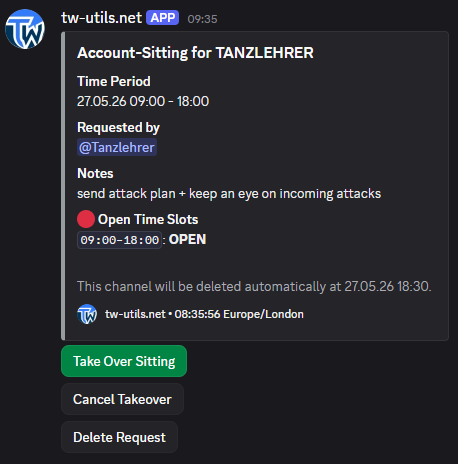
After submitting, the bot creates a new channel in the category and posts the request embed with all details and the takeover buttons.
3. Take over a sitting
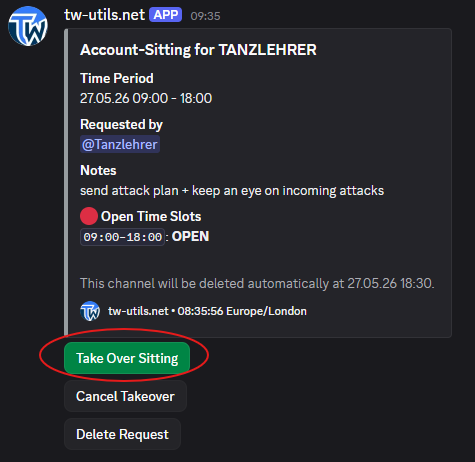
In the request channel, every player sees the Take Over Sitting button. With it, any normal server user can take over a slot (or part of it).
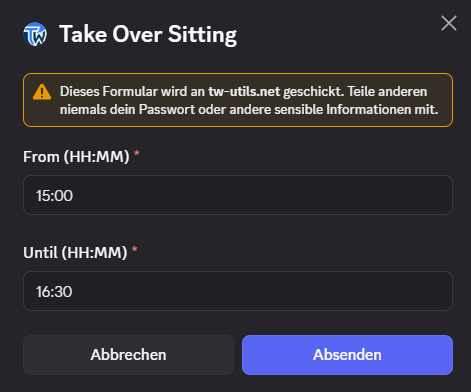
In the Take Over Sitting modal, specify the time range you want to cover:
From (HH:MM)— from when you take over the sittingUntil (HH:MM)— until when you take over the sitting
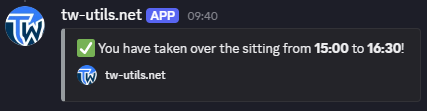
This also allows partial takeovers — e. g. player A covers the first four hours, player B the rest. After a successful takeover, a confirmation is posted in the channel.
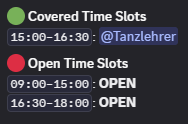
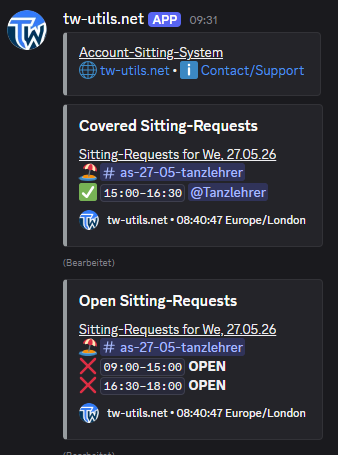
The request embed updates automatically — covered time slots are shown as „covered", the rest stays visible as „open time slots".
4. Cancel a takeover or delete a request
If you have taken over a slot but can no longer cover it, click Cancel Takeover in the request channel.
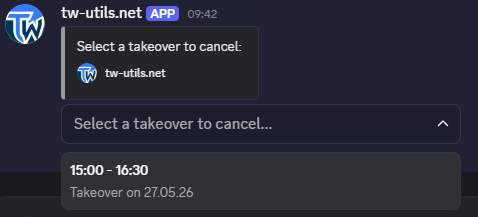
In the dropdown that appears, pick the takeover you want to cancel. The freed-up time slot is marked as „open" in the embed again.
If the entire request is no longer needed (e. g. because the sitting is not necessary anymore), the creator — or a user with the TWU-Troops role (or higher) — can remove the request completely via the Delete Request button. The associated channel is deleted along with it.
5. Overview dashboard
The dashboard channel #⚫-overview-account-sitting shows the current state of all sittings in your tribe at any time — both already covered slots and any open requests. The bot updates the embed automatically whenever something changes.
6. Reminder DM
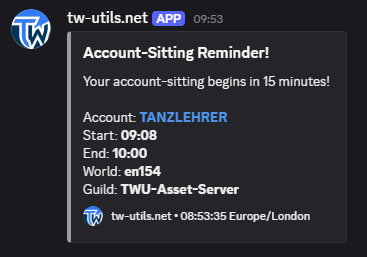
15 minutes before a taken-over slot starts, the bot automatically sends the sitter a Discord direct message (Account-Sitting Reminder!). The DM contains:
- the Tribalwars account that needs covering
- the game world
- start and end time of the taken-over slot
Disable reminder DM
Anyone who does not want to receive reminder DMs from the bot can disable them at any time per Discord user via the Notifications button in the #⚫-bot-config channel. If you have an account on tw-utils.net, you can alternatively manage the notification there in your profile settings.
7. Automatic clean-up
The channel created for the request is automatically deleted 30 minutes after the end of the requested time slot — including all messages in it. You don't have to clean up anything manually. The request embed additionally shows a note about exactly when the channel will be removed.