Tab 4: Calculation¶
In Tab 4 the actual calculation of the off-plan is run. From the data and settings stored in Tab 1: Data, Tab 2: Nuke-Planning and Tab 3: Fake-Planning, a concrete command plan is generated here. Afterwards the planning result is shown as an actual/target comparison and the export functions (Save Plan, Workbench commands, Excel) become available.
1. Planning mode¶
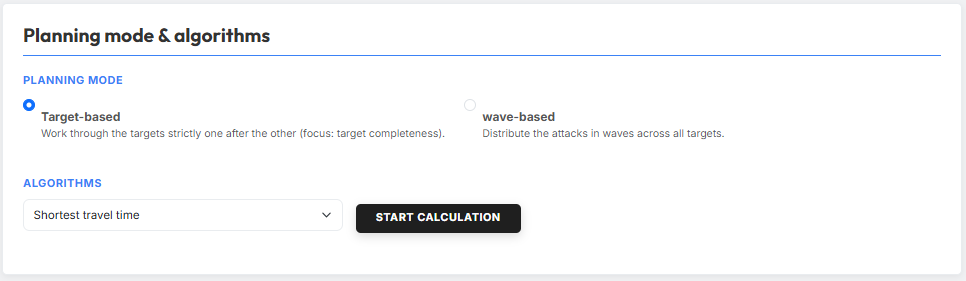
In the "Planning mode & algorithms" section you first choose, via two radio buttons, how the tool approaches the calculation:
- Target-based — "Work through the targets strictly one after the other (focus: target completeness)." The tool fully plans one target — only once that target has received its required nukes, cleaners, C-splits and fakes does it move on to the next. Useful when the completeness of each individual target matters more than an even distribution across all targets.
- wave-based — "Distribute the attacks in waves across all targets." Instead of target-by-target, the tool first tries to assign at least one nuke to every target. In a 2nd wave it then tries to assign the second nuke to every target, and so on. Useful when all targets should end up at a similar supply level — even if not every target ends up fully covered.
2. Algorithm¶
The "Algorithms" dropdown lets you choose which strategy the tool uses to pick from the possible source villages per target. Depending on the planning mode (see §1) the following algorithms are available:
- Watchtower optimized — "Tries to plan attacks in a way that avoids routing them through known watchtower radii." Only available on worlds with active watchtowers. When selected, an additional configuration area appears (see §2.1).
- Morale optimized — prefers source villages from the pool of possible options that have high morale.
- Shortest travel time — for each target, picks the source village with the shortest travel time out of the possible options.
- Longest travel time — for each target, picks the source village with the longest travel time out of the possible options.
- Random — picks randomly from the possible sources. Useful when no specific optimization is wanted or when the plan should look as unspecific as possible.
- Scarcity optimized (Distribution) — only available in wave-based mode. Plans first those source villages that could reach the fewest targets within travel time.
Algorithm only works within the available pool
Which source villages the algorithm has to choose from depends on the settings made in the previous tabs — in particular on the Prioritization of nuke categories (Tab 2 §11) and the option "Strict prioritization (enforcing order)" set there. An optimal algorithm can only ever deliver the best result within the permitted pool — not necessarily the globally best one.
Example — Morale optimized + strict prioritization: You pick the Morale optimized algorithm and have strict prioritization enabled in Tab 2, with Villages >2000 axe as the highest-priority nuke category. For a given target the tool only finds an option with 80 % morale in the >2000 axe pool — and plans it. The fact that a village with 100 % morale might have existed in the lower-priority >1000 axe category remains undetected: strict prioritization instructs the algorithm to touch lower categories only once no valid options at all remain in the higher category.
If you want to give the algorithm more leeway, disable strict prioritization in Tab 2 — all selected categories are then merged into a single shared pool from which the algorithm can optimize freely.
Once a choice has been made, you start the calculation with the button "Start calculation" to the right of the dropdown.
Calculation runs in the background
Bigger plans can take a few seconds up to several minutes. While the calculation runs, the button text changes to e.g. "Calculating… (0m 15s)". Don't close the page during the calculation — the running worker would otherwise be cancelled.
2.1 Watchtower-Configuration¶
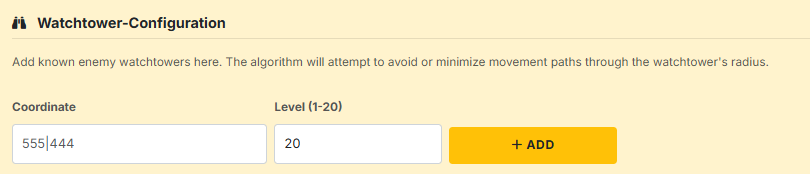
As soon as "Watchtower optimized" is selected as the algorithm, the tool additionally shows the "Watchtower-Configuration" area. Here you list known enemy watchtowers; the algorithm then tries to avoid or minimise routes through their radii.
For each watchtower you enter:
- Coordinate — position of the watchtower in
XXX|YYYformat. - Level (1-20) — level of the watchtower; determines the effect radius (level 20 ≈ 15 fields).
Click Add to put the watchtower on the list.
Below the input fields on the left you'll find the list of registered watchtowers with coord, player and level. On the right, the map preview "Preview and Coverage" shows the watchtowers together with their effect circles — so you can visually check how much of the map is actually covered by enemy watchtowers.
3. Planning result¶

After a successful calculation the planning result appears directly below the calculation area — a row of actual/target cards plus three action buttons.
Each card shows the actual value on the left (what could actually be planned) and the target value on the right after the slash (what should have been planned according to the settings). Which cards appear depends on the plan — empty categories are hidden:
- Nuke — real nukes planned from Tab 2.
- Cleaner — interim cleaners (catapult-cleaners) planned from Tab 2.
- C-Splits — catapult-splits planned from Tab 2.
- Fakes (Nuke planning) — accompanying fakes for real targets from Tab 2.
- Fakes (Fake planning) — pure fake commands from Tab 3.
- All — sum of all commands (highlighted in dark grey).
If the actual and target values match, the plan is complete. If the actual value is below, the §4.2 Incomplete targets tab lists which commands are missing for which targets.
To the right of the cards you'll find three action buttons:
- Save Plan — opens the "Save Plan" modal where you enter a name in the "Name of the plan" field and store the plan via Save. Saved plans are then available under "My Plans & Containers".
- WORKBENCH — copies all commands as workbench strings to the clipboard.
- Excel — downloads the entire planning result as an Excel file.
4. Detail tabs¶
Below the action buttons there are four tabs that present the planning result from different perspectives.
4.1 Overview¶
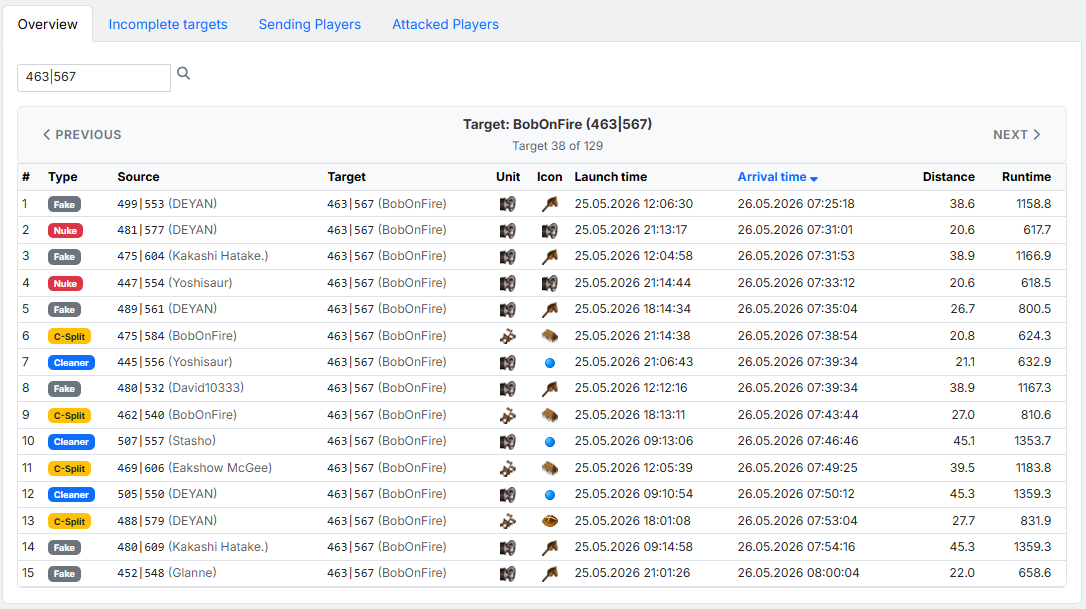
The "Overview" tab shows all planned commands per target. Use
the "Previous" / "Next" buttons to step through targets one
by one, or use the search field at the top left to jump directly to
a specific target by entering a coordinate (123|456).
The table lists every command for the current target — columns:
- # — running number within the target.
- Type — command type as a badge (Nuke, Fake, Cleaner, C-Split, …).
- Source — source coordinate and source player.
- Target — target coordinate and target player.
- Unit — unit with which the command was planned.
- Icon — command icon.
- Launch time / Arrival time — show the respective launch resp. arrival time of the command.
- Distance — distance to the target in fields.
- Runtime — travel time of the unit in minutes.
4.2 Incomplete targets¶

The "Incomplete targets" tab lists all targets for which the tool could not plan all required commands. A red badge next to the tab name shows the number of incomplete targets. Columns:
- Coordinate (Player) — the incomplete target.
- Category — which category the target belongs to (Snob-Spam, Catapult-Spam, Breaking Bunkers, Fake-Planning Normal/Bunker).
- Nukes missing / Cleaner missing / C-Splits missing / Fakes missing — how many commands of each type are still missing.
- Total missing — sum of the missing commands.
If every target is fully covered, the tab instead shows the green success message "All targets are complete.".
4.3 Sending Players¶
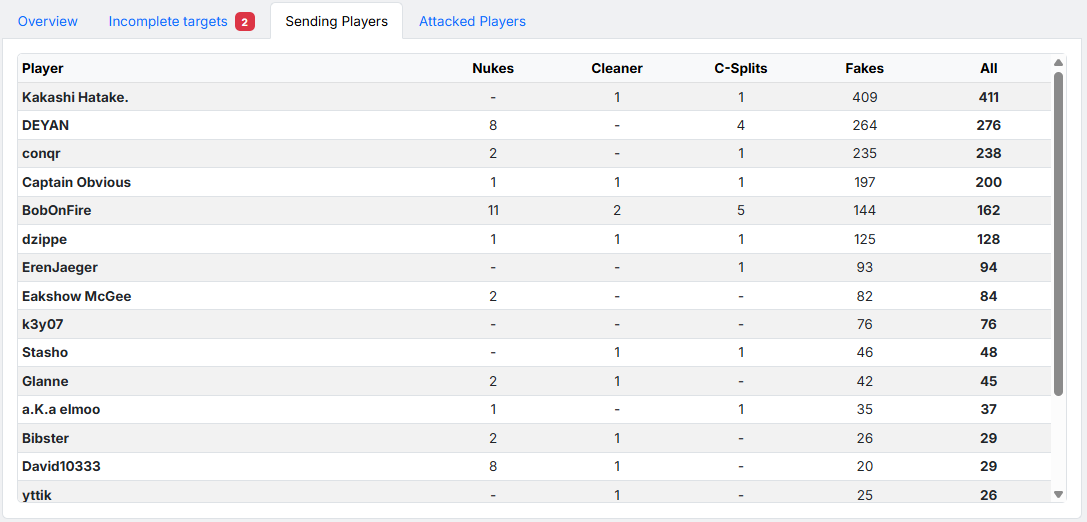
The "Sending Players" tab shows which player sends how many commands — sorted descending by total commands. Columns:
- Player — name of the sending player.
- Nukes / Cleaner / C-Splits / Fakes — number of commands of each type the player sends.
- All — sum of all commands sent by the player.
Useful for distributing the load evenly across team members and for spotting overloaded individual players.
4.4 Attacked Players¶
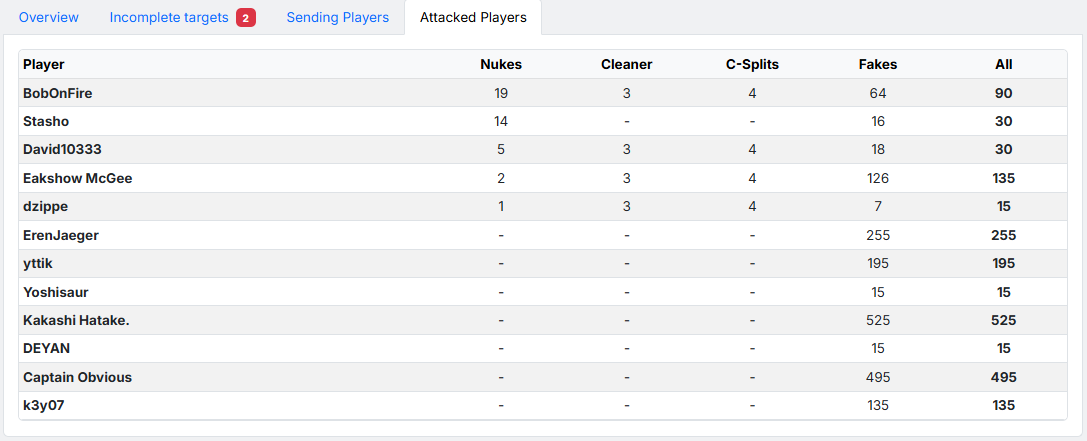
The "Attacked Players" tab is the counterpart: it shows which enemy players receive how many commands — sorted descending by nukes. The columns are identical to §4.3 (Player, Nukes, Cleaner, C-Splits, Fakes, All), but the values refer to the attacked player here.
5. Re-running the calculation¶
If you're not happy with the planning result, you can jump back into the previous tabs at any time (Tab 1, Tab 2 or Tab 3), adjust your settings and start the calculation in Tab 4 again.