Tab 1: Data & Preparations
In Tab 1 you define the fundamental premises for the planning.
1. Import troops
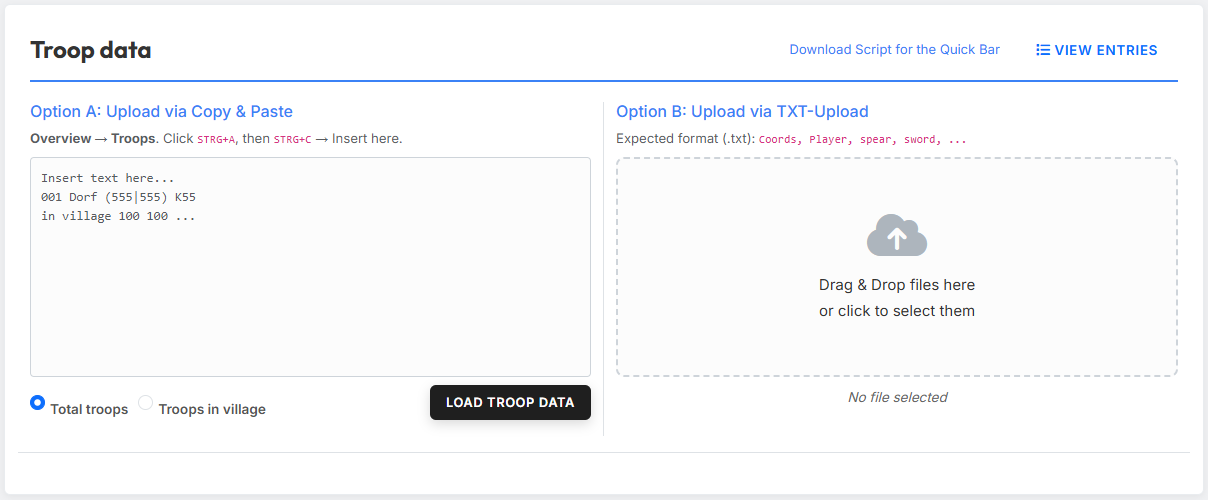
In the "Troop data" section you upload the troops from which the tool should plan the nukes. There are two ways to do this.
Option A: Copy & Paste
Copy the troops from the in-game troop overview (Ctrl+A, Ctrl+C) and paste them into the text field on the left. Use the two radio buttons to define which information from the troop overview the tool should use:
- Total troops — all troops in total (your own + those en route).
- Troops in village — only the troops currently present in the village.
Option B: TXT upload
Alternatively, you can upload a TXT file in a fixed format. The easiest way to create this file is via the quick-bar script "Download Tribe Info".
Expected file format:
Coords,Player,spear,sword,axe,archer,spy,light,marcher,heavy,ram,catapult,knight,snob
483|520,Testuser A,2421,6099,100,5963,50,50,3632,200,5,279,0,8
543|538,Testuser A,100,100,6027,100,6,3014,100,100,159,5,0,0
467|559,Testuser A,3779,4836,100,4803,40,50,6309,1584,5,80,0,0
465|523,Testuser B,4298,5495,100,6752,23,50,5761,1131,5,35,0,0
468|515,Testuser B,721,4160,100,2280,61,50,5935,832,5,308,0,4
View entries
Use the "View entries" button to inspect the imported troops at any time.
2. Exclude origin villages
You can exclude origin villages from the planning in two ways: specifically from a saved plan — optionally only for certain command types — or by manually entering individual coordinates.
Exclude from a saved plan
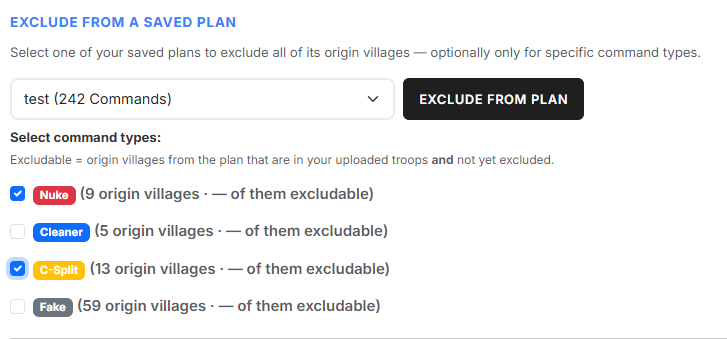
In the "Exclude from a saved plan" section you exclude all origin villages of an already saved plan in one step. Select the desired plan from the dropdown — the number in parentheses shows how many commands the plan contains.
After selecting a plan, the list of command types contained in it appears, each with a coloured badge for quick distinction. Tick the types whose origin villages you want to exclude. Each type shows how many origin villages it contains and how many of those are excludable. The "Exclude from plan" button only becomes active once at least one command type is ticked; clicking it adds the origin villages of the ticked types to the exclusion list.
What 'excludable' means
Excludable are only origin villages that are contained in the plan, present in your uploaded troops and not yet excluded. So upload your troops first (step 1) — otherwise the counter shows a "—" instead of a number.
Manual entry
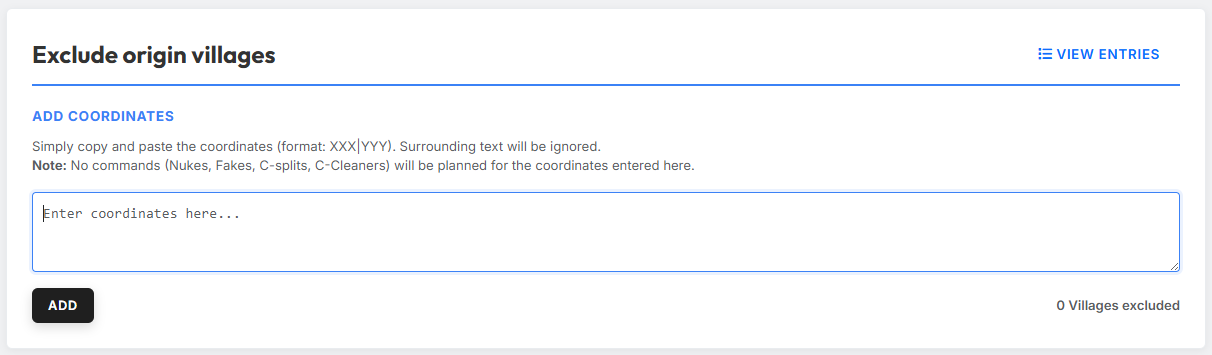
In the "Add coordinates" section you can exclude individual villages from the planning. Paste the coordinates into the text field and click "Add". Surrounding text is not a problem — the tool detects the coordinates automatically.
Use the "View entries" button to inspect and manage all excluded villages — whether excluded manually or from a plan — at any time.
No commands from excluded villages
For excluded origin villages, no commands are planned — these villages are completely excluded from the planning.
3. Set launch times
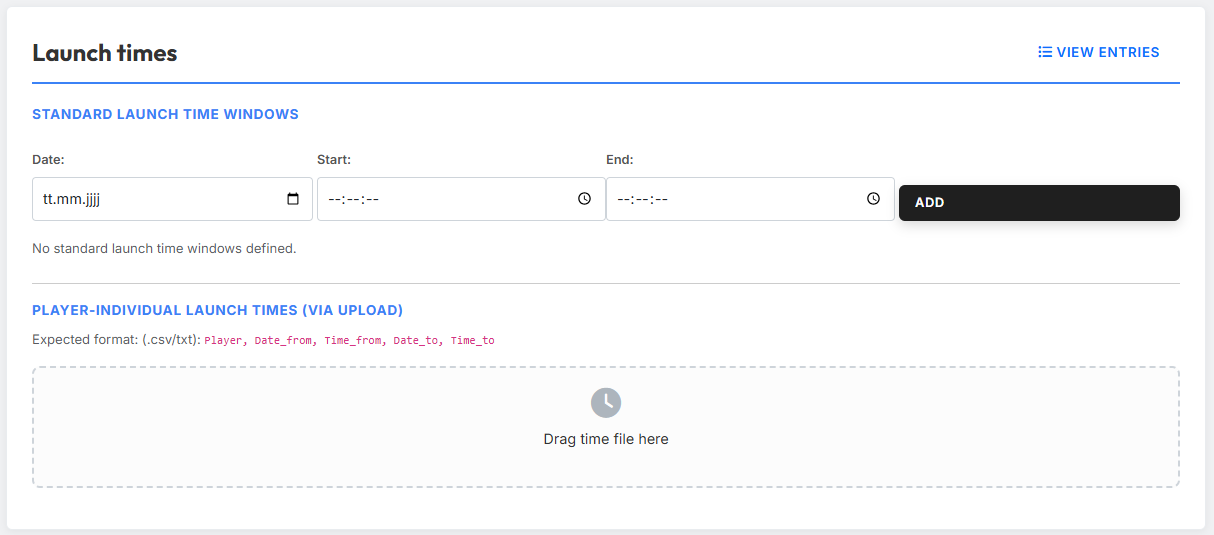
In the "Launch times" section you define the time windows in which commands should be launched. There are three ways to define launch times.
Type 1: Standard launch time windows
In the "Standard launch time windows" area you enter date, start time and end time and add the window via "Add". You can create several windows in a row. These standard windows apply to all players for whom no individual times are defined.
Type 2: Import from a Discord server
In the "Import from Discord server" area you can pull the launch times that members of your tribe have already submitted via the tw-utils Discord bot directly into the Off-Planner — without the detour through export files.
Prerequisite: You must have the Leader role on at least one Discord
server, and that server must be configured for the world currently
selected in tw-utils. If that is not the case, the area remains visible
but shows the hint "You have no Discord server with Leader status for
this world." and the button stays disabled.
Usage: From the checkbox list select one or more of your Leader servers. Clicking "Import" makes the Off-Planner pull all future-dated launch time windows reported there and assign them to the respective players. Any existing individual times for the affected players — regardless of whether they originated from a previous TXT upload or a previous Discord import — are overwritten completely on a per-player basis. Players for whom none of the selected servers contains a report keep their existing times.
How your tribe members submit their launch times via the Discord bot is described here: Discord bot · Planning System · Launch times.
When a player has reported on multiple Discord servers
If a player has submitted times on more than one of the selected servers, the guild with the most recent report wins for that player — all of their windows from that guild are imported, while reports from the other servers for the same player are discarded. In practice this conflict case is rare, since players usually maintain their times on a single guild only.
Type 3: Player-individual launch time windows (via upload)
In the "Individual times (upload)" area you can upload individual launch times per player. The players provide you with their personal times, which you then load into the tool as a structured file (.csv or .txt).
Expected file format:
Testuser A,10.05.2026,10:00:00,10.05.2026,10:07:00
Testuser A,10.05.2026,12:00:00,10.05.2026,12:15:00
Testuser B,10.05.2026,11:30:00,10.05.2026,12:00:00
Testuser B,10.05.2026,17:15:00,10.05.2026,18:15:00
Testuser C,10.05.2026,10:00:00,10.05.2026,10:05:00
Testuser C,10.05.2026,12:00:00,10.05.2026,12:15:00
Testuser C,10.05.2026,17:00:00,10.05.2026,19:00:00
Testuser C,10.05.2026,21:00:00,10.05.2026,21:15:00
Standard vs. individual launch windows
Standard launch windows and individual launch windows are mutually exclusive. If individual times are defined for a player — whether from a Discord import or from a TXT upload — only those times are used. The standard windows then do not apply to that player.
Delete all individual times
At the end of the "Launch times" section you find the button "Delete all individual times". It removes all individual time windows in one step, regardless of whether they originated from a TXT upload or from a Discord import. The standard launch windows remain untouched.
View entries
Use the "View entries" button to display, for each scheduled player, which launch times apply (standard or individual). The button only becomes available once troops have been imported.
4. Define the frontline
You can define the frontline in two ways: enter the frontline villages manually or import them from an off-plan you saved earlier for this world.
Manual entry
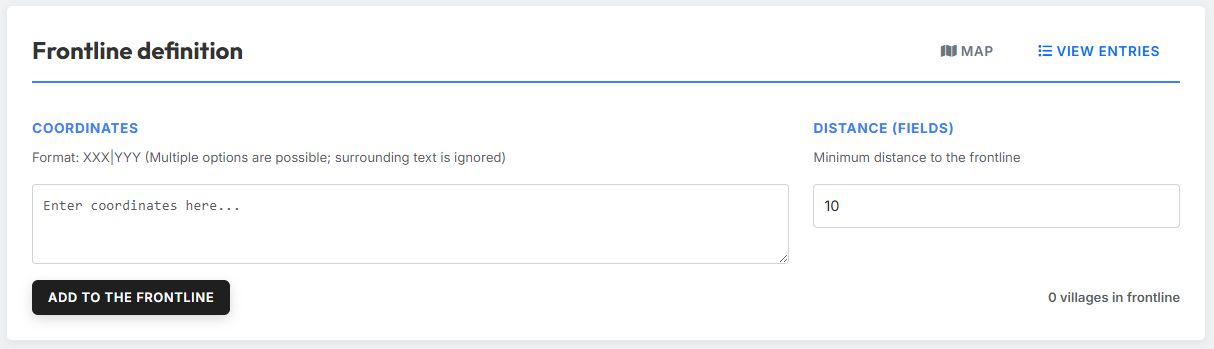
In the "Frontline definition" section you define which villages are considered frontline villages and are therefore excluded when nukes are planned. To do so, enter the coordinates that define your frontline into the "Coordinates" field and specify the desired minimum distance to the frontline under "Distance (fields)". Then click "Add to the frontline".
The configured distance creates a so-called frontline area around the frontline coordinates. No nukes are planned from this frontline area — this keeps frontline players mobile so they can react to attacks at short notice.
Use the "View entries" button to inspect and edit the recorded frontline coordinates at any time.
Import from a previous plan
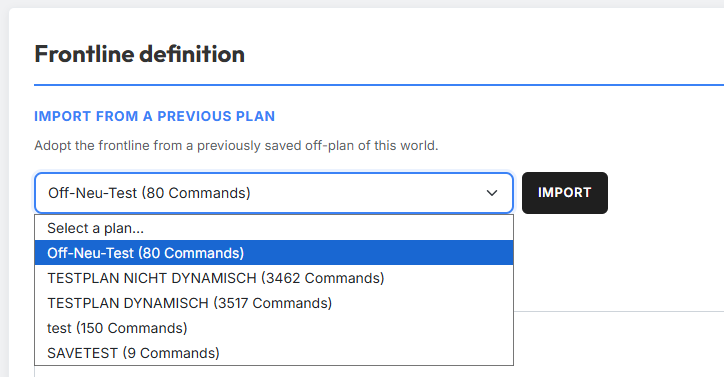
Instead of entering the frontline manually, you can adopt it from an off-plan you saved earlier for this world. In the "Import from a previous plan" section, select the desired plan from the dropdown — the number in parentheses shows how many commands the plan contains — and click "Import".
The saved frontline is adopted into your current planning and merged with any frontline coordinates you already have. Only off-plans of the currently selected world are available. If a plan has no saved frontline, you are notified accordingly.
Map visualization
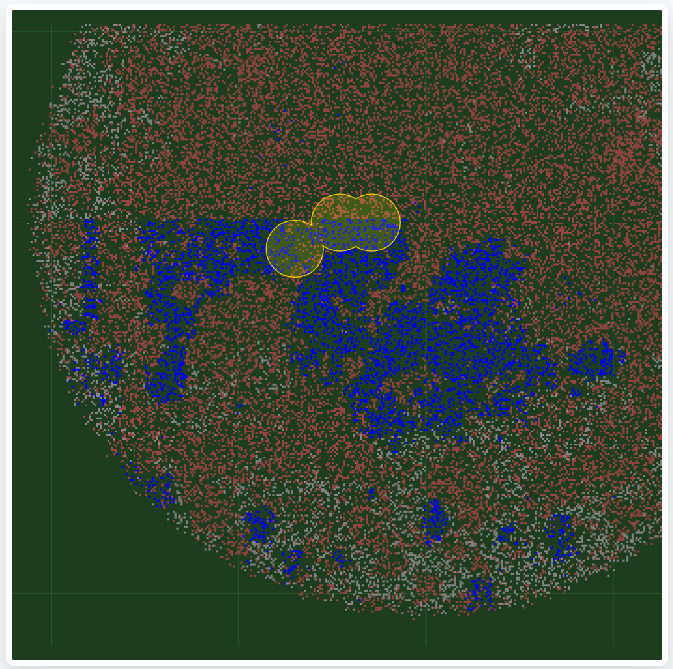
Click "Map" to open a map on which the resulting frontline area is highlighted in yellow. All villages within the yellow area are not planned as nukes. The map helps you check your inputs visually.
5. Troop availability
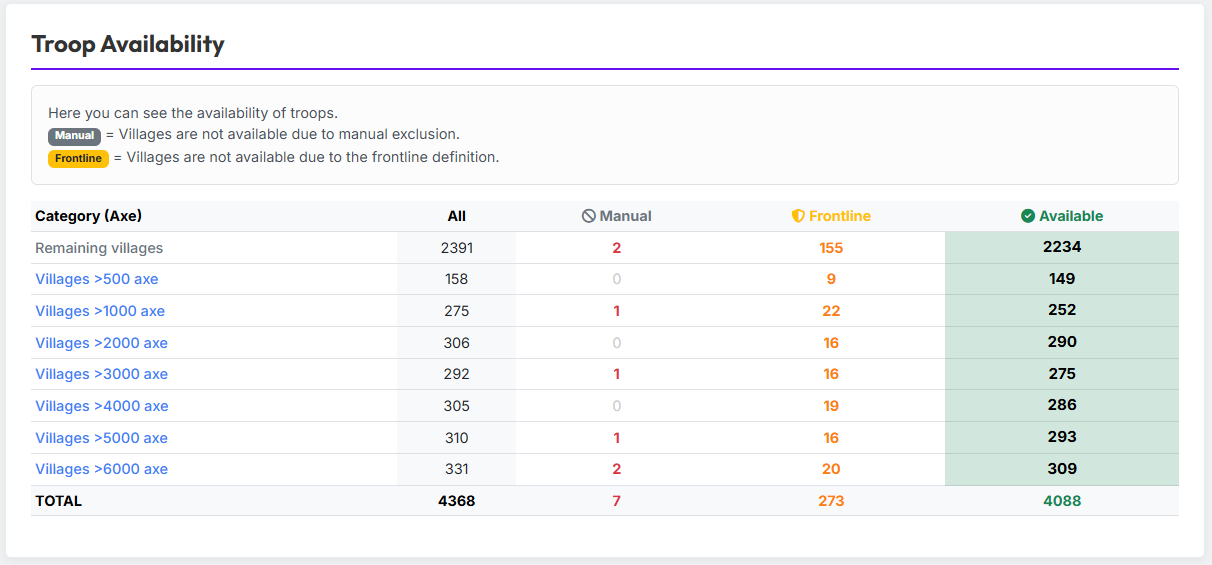
In the "Troop Availability" section you see at a glance how many nukes the tool can actually plan. The table shows:
- All — all imported nukes in total.
- Manual — nukes excluded by excluding origin villages (manually or from a saved plan).
- Frontline — nukes excluded due to the frontline definition.
- Available — the nukes that remain available for planning after all exclusions.
This way you always have a clear overview of the resources available for the nuke planning.