Instructions
The tool calculates cleaners and Fake-Sup commands whose launch times are placed as close as possible to another command — typically a nobleman or train. This lets you add cleaners and Fake-Sup with perfect timing alongside an existing snob plan.
1. Import troops
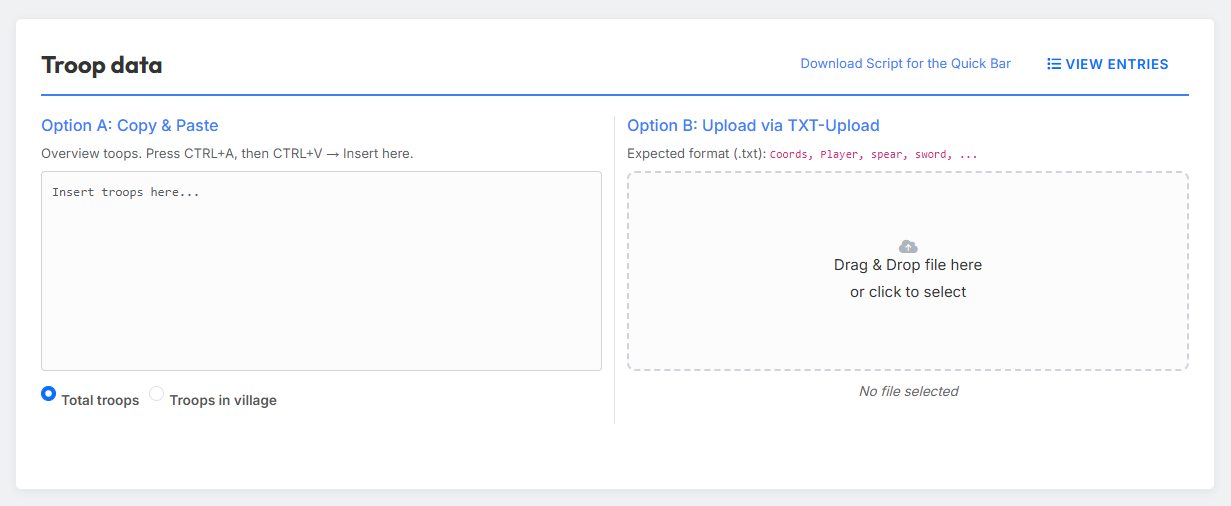
In the "Troop data" section you upload the troops from which the cleaners and Fake-Sup should be calculated. There are two ways to do this.
Option A: Copy & Paste
Copy the troops from the in-game troop overview (Ctrl+A, Ctrl+C) and paste them into the text field on the left. Use the two radio buttons to define which information from the troop overview the tool should use:
- Total troops — all troops in total (your own + those en route).
- Troops in village — only the troops currently present in the village.
Option B: TXT upload
Alternatively, you can upload a TXT file in a fixed format. The easiest way to create this file is via the quick-bar script "Download Tribe Info".
Expected file format:
Coords,Player,spear,sword,axe,archer,spy,light,marcher,heavy,ram,catapult,knight,snob
483|520,Testuser A,2421,6099,100,5963,50,50,3632,200,5,279,0,8
543|538,Testuser A,100,100,6027,100,6,3014,100,100,159,5,0,0
467|559,Testuser A,3779,4836,100,4803,40,50,6309,1584,5,80,0,0
465|523,Testuser B,4298,5495,100,6752,23,50,5761,1131,5,35,0,0
468|515,Testuser B,721,4160,100,2280,61,50,5935,832,5,308,0,4
View entries
Use the "View entries" button to inspect the imported troops at any time.
2. Import snob plan
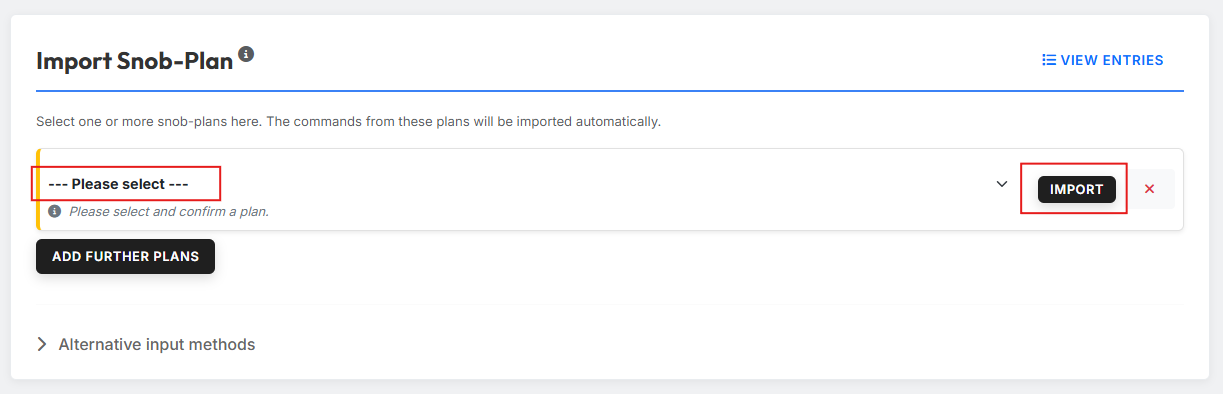
In the "Import Snob-Plan" section you select a snob plan that was already created in tw-utils. The commands from that plan are imported automatically — based on them, the tool then calculates the matching cleaners and Fake-Sup.
Click "Add further plans" to import several plans one after the other.
View entries
Use the "View entries" button to inspect the imported snob commands at any time.
Alternative input methods
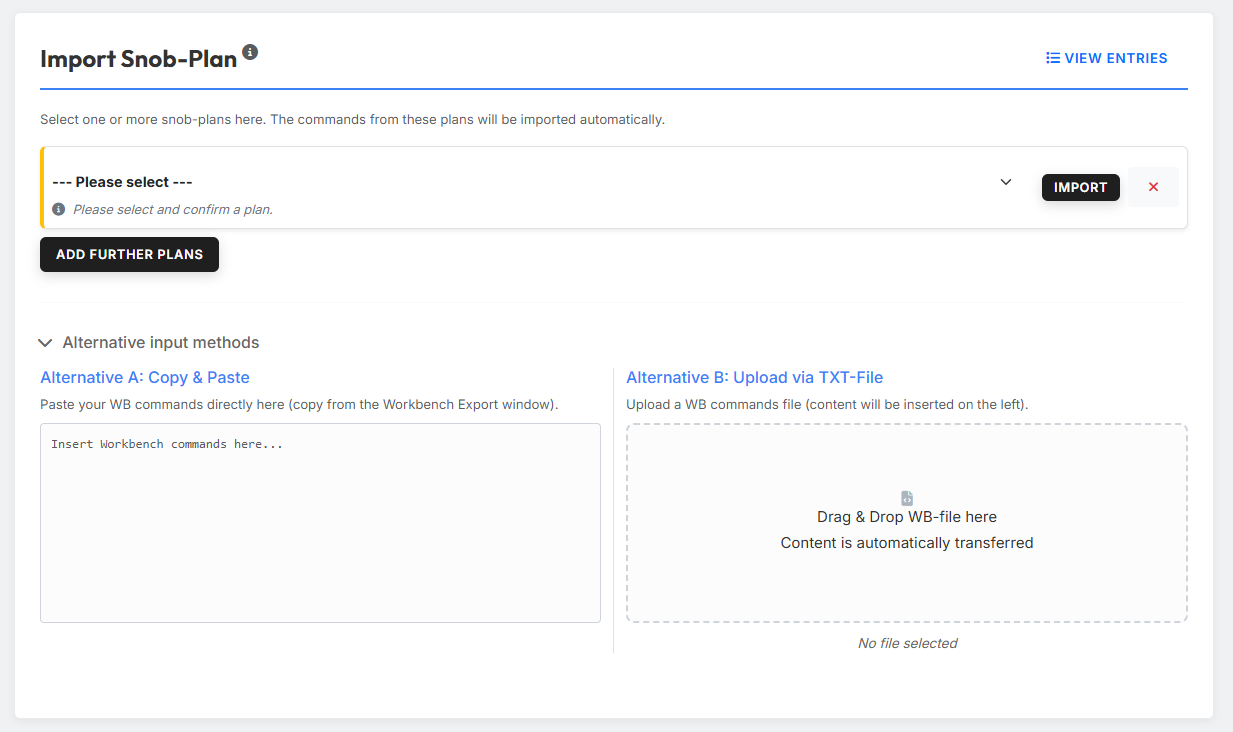
If you want to use an external plan, you can expand the collapsible "Alternative input methods" section. It offers two alternative import paths:
- Alternative A: Copy & Paste — paste the Workbench commands directly into the text field (e.g. copied from the Workbench export window).
- Alternative B: Upload via TXT-File — upload a TXT file containing Workbench commands; the content is read into the tool automatically.
3. Settings
Cleaners
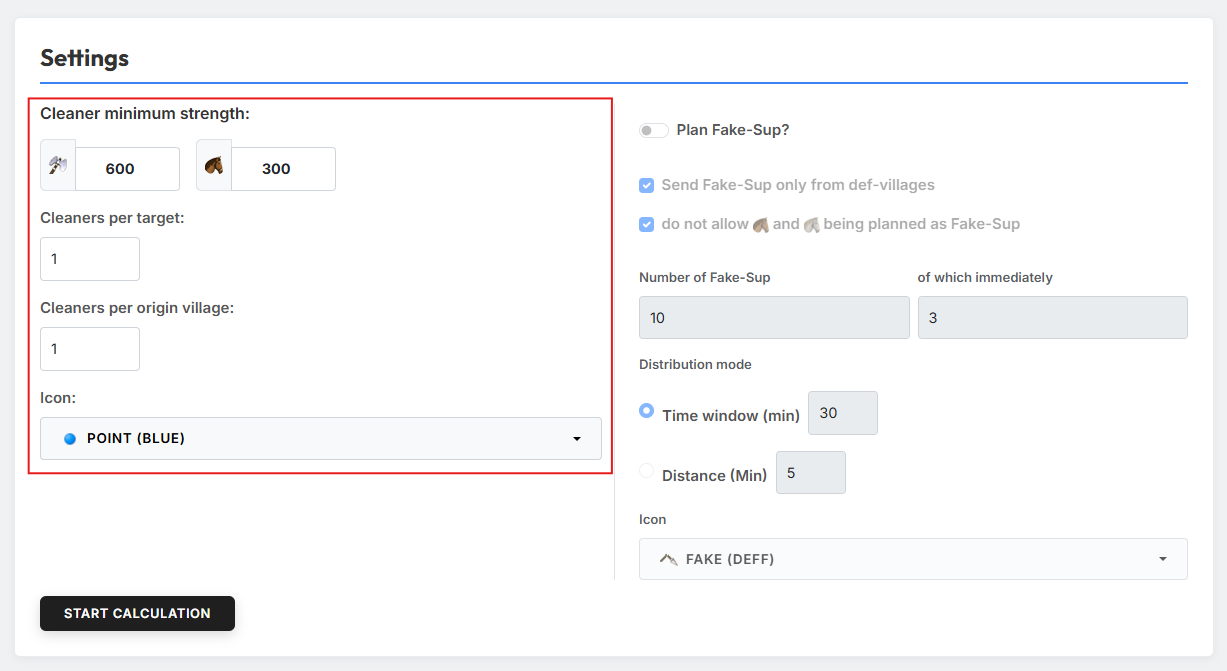
In the "Cleaner minimum strength" field you set the required strength of the cleaner — as a count of axemen and light cavalry.
How the minimum strength is evaluated
From your input, the tool calculates the cleaner's attack strength. Any combination of offensive units is then allowed as a cleaner, as long as it reaches that attack strength. Pure light-cavalry cleaners can therefore also be planned, provided the village has enough light cavalry to cover the required attack strength.
You can also configure:
- Cleaners per target — how many cleaners are planned per target.
- Cleaners per origin village — how many cleaners can be sent from the same origin village at most.
- Icon — which icon the cleaner commands should receive.
Fake-Sup
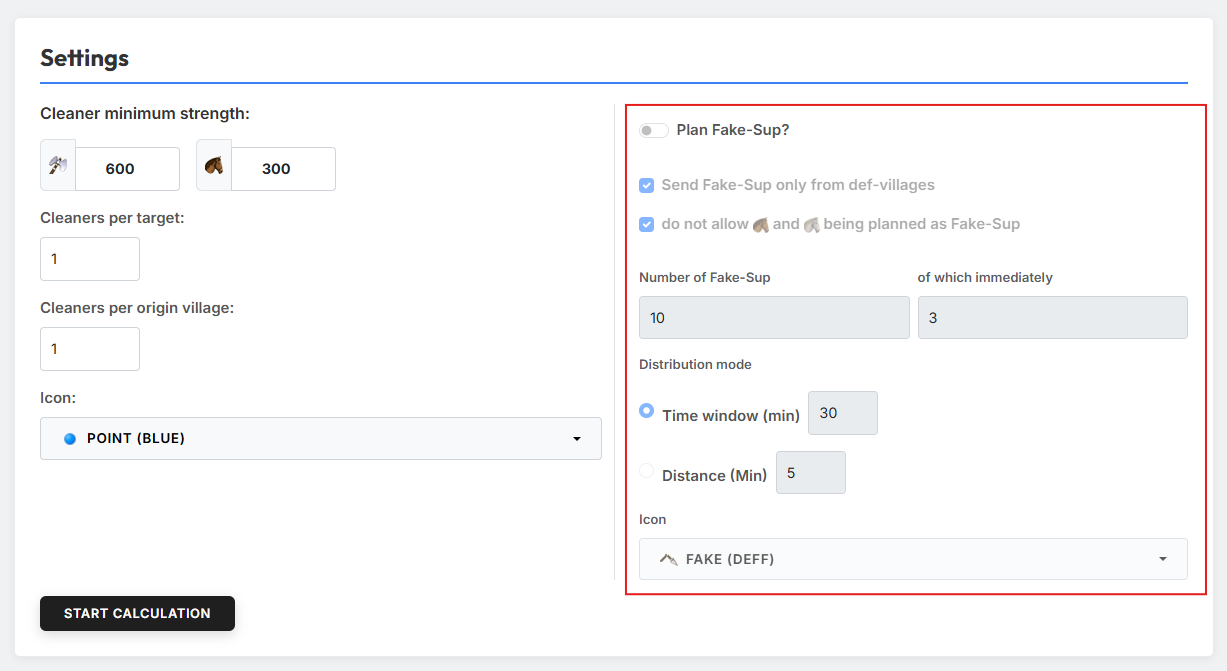
Use the "Plan Fake-Sup?" toggle to activate the Fake-Sup calculation. Afterwards, two checkboxes are available:
- "Send Fake-Sup only from def-villages" — restricts the origin-village selection to purely defensive villages.
- "do not allow light cavalry and scouts being planned as Fake-Sup" — excludes fast units from being used as Fake-Sup.
World settings are taken into account
When planning Fake-Sup, the tool takes the world settings around tribe-internal support into account.
You can also set the Number of Fake-Sup and select the icon that is assigned to the Fake-Sup commands.
4. Start the calculation
Clicking the "Start Calculation" button runs the calculation of the cleaners and Fake-Sup.